Every report configuration in VeloxFactory has a built-in **Generate PDF** function — a dedicated page that lets you render the report directly from the browser, without writing a single line of code or touching the API. It is the fastest way to produce a PDF, test a configuration, or trigger a print job on demand.
[](https://docs.veloxfactory.kiwi-software.dev/uploads/images/gallery/2026-05/report-config-index-generate-pdf.png)
[](https://docs.veloxfactory.kiwi-software.dev/uploads/images/gallery/2026-05/generate-pdf-create.png)
---
Opening the Generate PDF Page
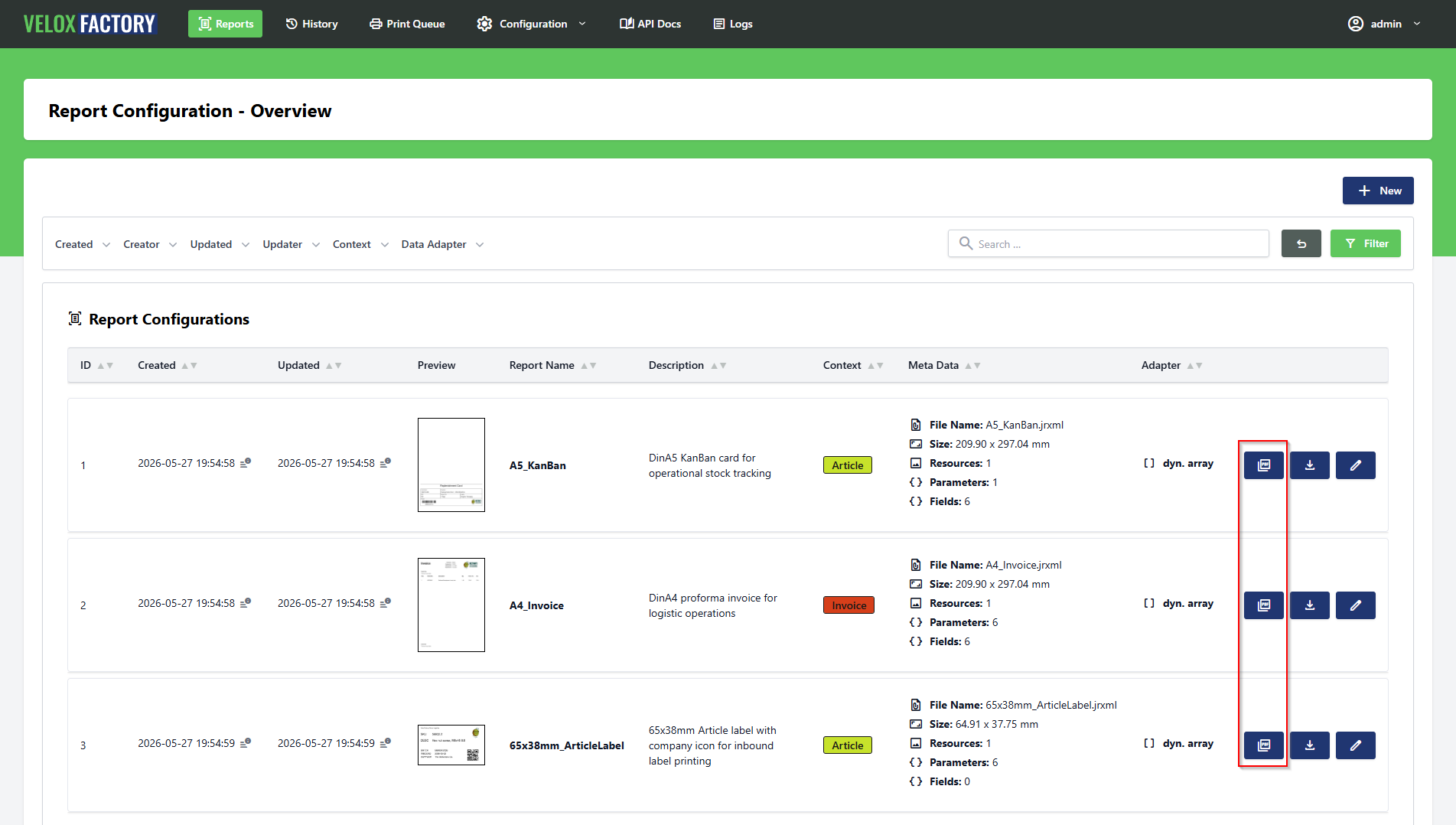
There are two ways to reach the Generate PDF page. From the report configuration list, each report card has a dedicated **Generate PDF** button — clicking it takes you directly to the render page without having to open the report first. Alternatively, open any report configuration and navigate to **Generate PDF** from within the report view.
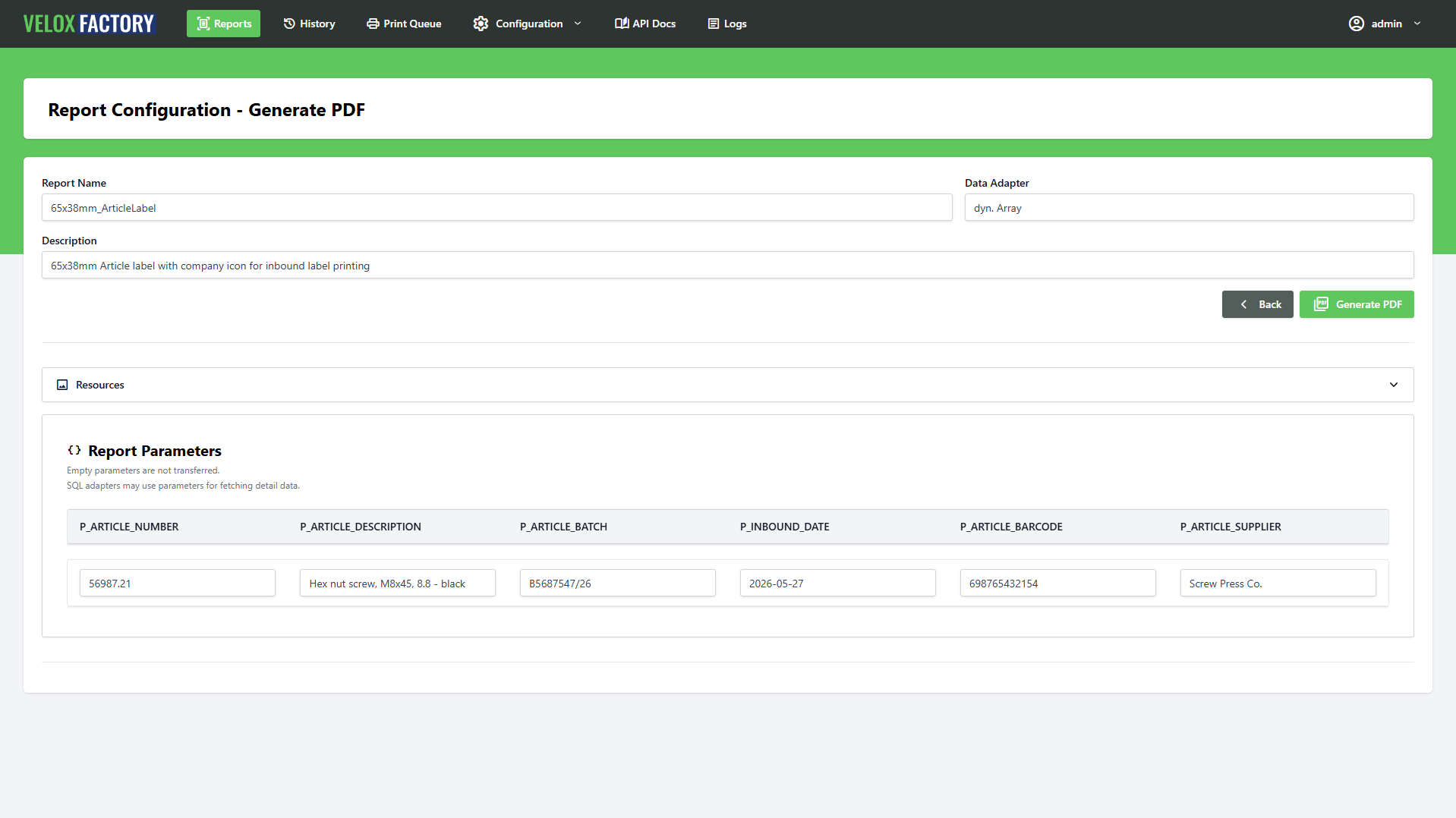
The page shows two read-only fields at the top — the report name and the active data adapter — so you always know at a glance which report you are working with and where its data comes from.
The data adapter field displays either the name of the assigned `ReportConnectionConfig` (including driver and database) or **dyn. Array** if no SQL connection is configured. This directly influences what input sections appear further down the page.
---
Report Parameters
If the report defines parameters, a parameter input table is shown. Each parameter gets its own typed input field — the input type is derived automatically from the Java class declared in the `.jrxml`:
- A `java.lang.String` parameter becomes a text field.
- A `java.sql.Date` parameter becomes a date picker.
- A `java.lang.Integer` parameter becomes a number input with integer constraints.
- A `java.lang.Boolean` parameter becomes a toggle switch.
- And so on for all supported types.
Parameters marked as **required** in the report configuration must be filled in before the form can be submitted. Optional parameters can be left empty — VeloxFactory silently drops empty parameter values and does not include them in the render request.
---
Report Lines — Manual Data Entry
The **Report Lines** section only appears when the report has **no SQL connection assigned** — i.e. when the data adapter is `dyn. Array`. In this case, VeloxFactory has no database to query, so the detail band data must be entered manually in the browser.
The section shows a table with one column per field defined in the report. Each cell contains a typed input matching the field's data type. You fill in one row of values per data record you want to appear in the report.
To add more rows, use the **Add Row** button — it clones the input row and appends a new empty one. Individual rows (except the first) can be removed with the delete button on the right. Empty fields are not transferred to the render request.
ℹ️ When a SQL connection is assigned, the Report Lines section is hidden. VeloxFactory fetches the data automatically from the database using the configured query — no manual input needed.
---
Resources
If the report has image resources, a collapsible **Resources** section is available on the page. It shows a preview thumbnail of each resource file, its parameter name, and its file name. Resources are handled automatically at render time — you do not interact with them during rendering. The section is informational only, confirming which image files are currently assigned.
---
Generating the PDF
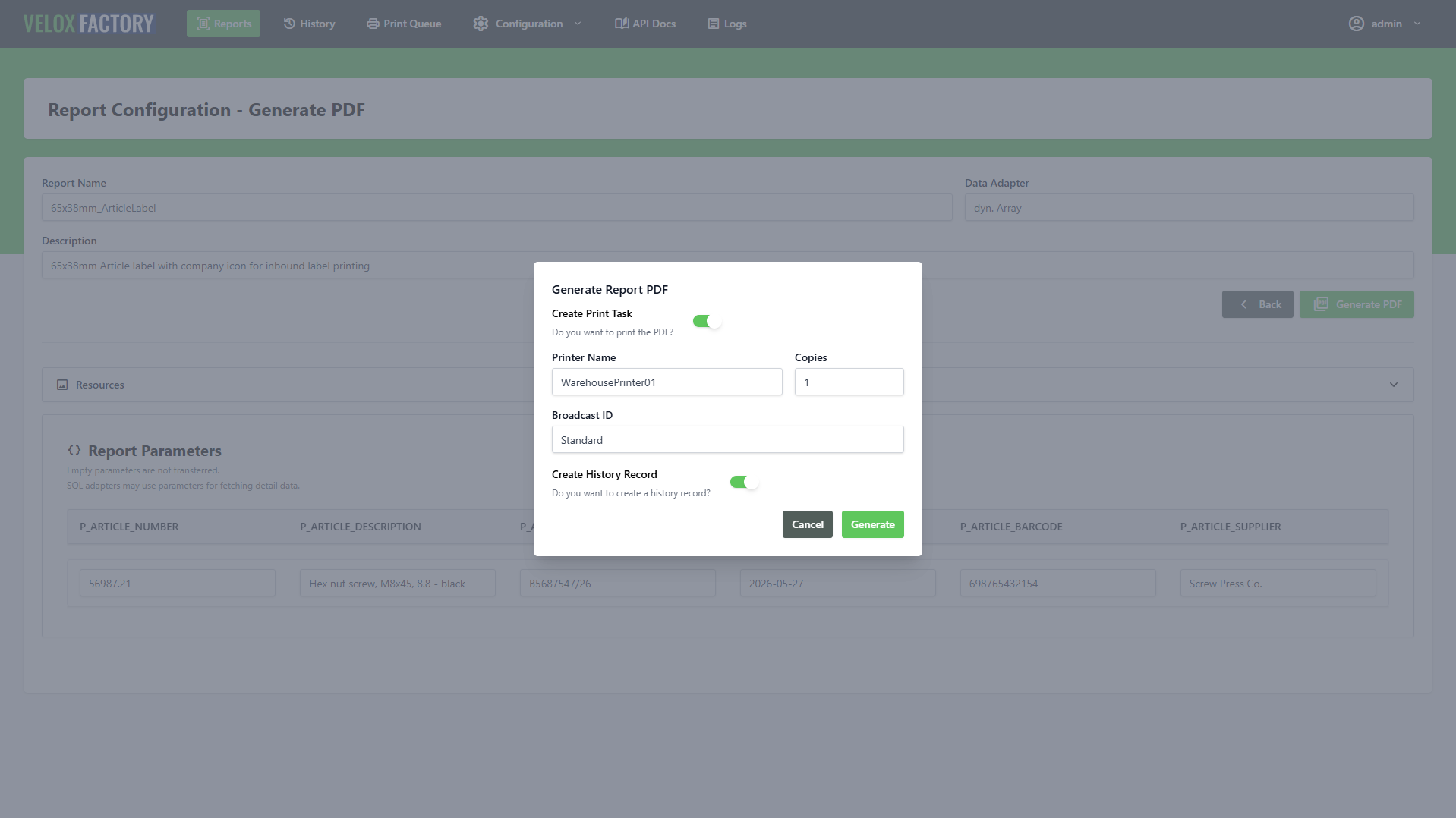
Once parameters and fields are filled in, click **Generate PDF**. A confirmation modal opens with the rendering options:
| Option |
Default |
Description |
| Create History Record |
On |
Saves a full record of this rendering — request, response, PDF, and thumbnail — to the report history. |
| Create Print Task |
Off |
Dispatches the rendered PDF to the print service after rendering. Requires a printer name. |
| Printer Name |
— |
The target printer. Required when Create Print Task is enabled. |
| Copies |
1 |
Number of copies passed to the print service. Does not trigger multiple renders. |
| Broadcast ID |
— |
Optional WebSocket channel ID. If provided, the print service is notified in real time when the print task is created. Leave empty to rely on polling instead. |
Confirm with **Generate** to start the render. The request is processed synchronously — the page waits for the result and displays it immediately.
[](https://docs.veloxfactory.kiwi-software.dev/uploads/images/gallery/2026-05/generate-pdf-modal.png)
---
The Result
Success
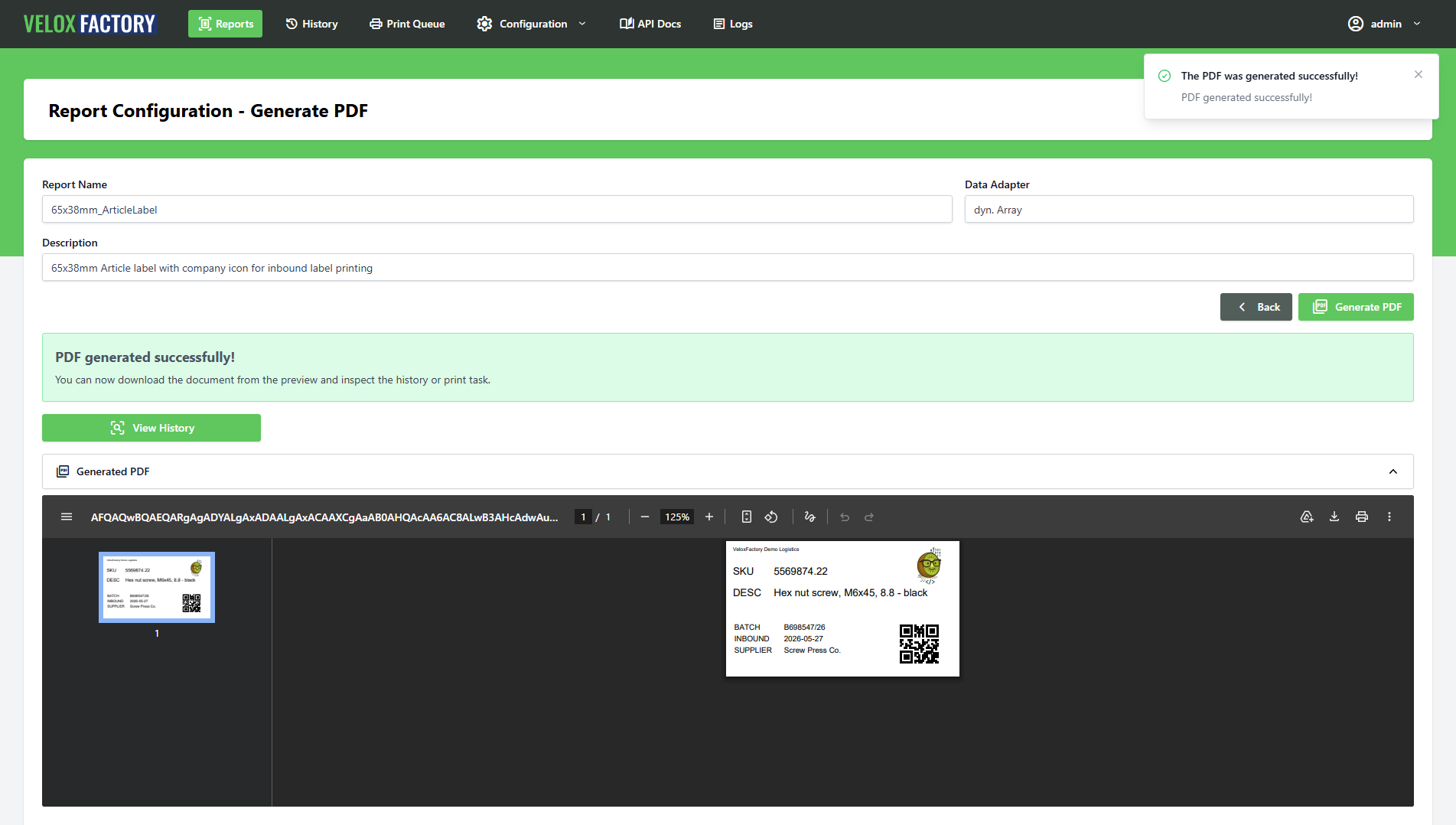
On a successful render, the page shows a green confirmation banner and embeds the generated PDF as an inline preview directly in the browser — sized to the report's actual page dimensions. No download required; the document is immediately visible.
If a history record was created, a **View History** button appears — linking directly to the new `ReportHistoryRecord`. If a print task was dispatched, a **View Print Task** button appears as well, linking to the `ReportPrintTask` record where you can monitor its status.
[](https://docs.veloxfactory.kiwi-software.dev/uploads/images/gallery/2026-05/generate-pdf-result.png)
Errors
If the render fails, the page shows a red error banner listing all error messages returned by VeloxFactory. Common causes are missing required parameters, a SQL query that returns no data for a report that expects some, or a resource file that was removed after the configuration was last saved.
If a history record was created before the error occurred, the **View History** button still appears — the failed attempt is recorded, including the error details, which is useful for diagnosing what went wrong.
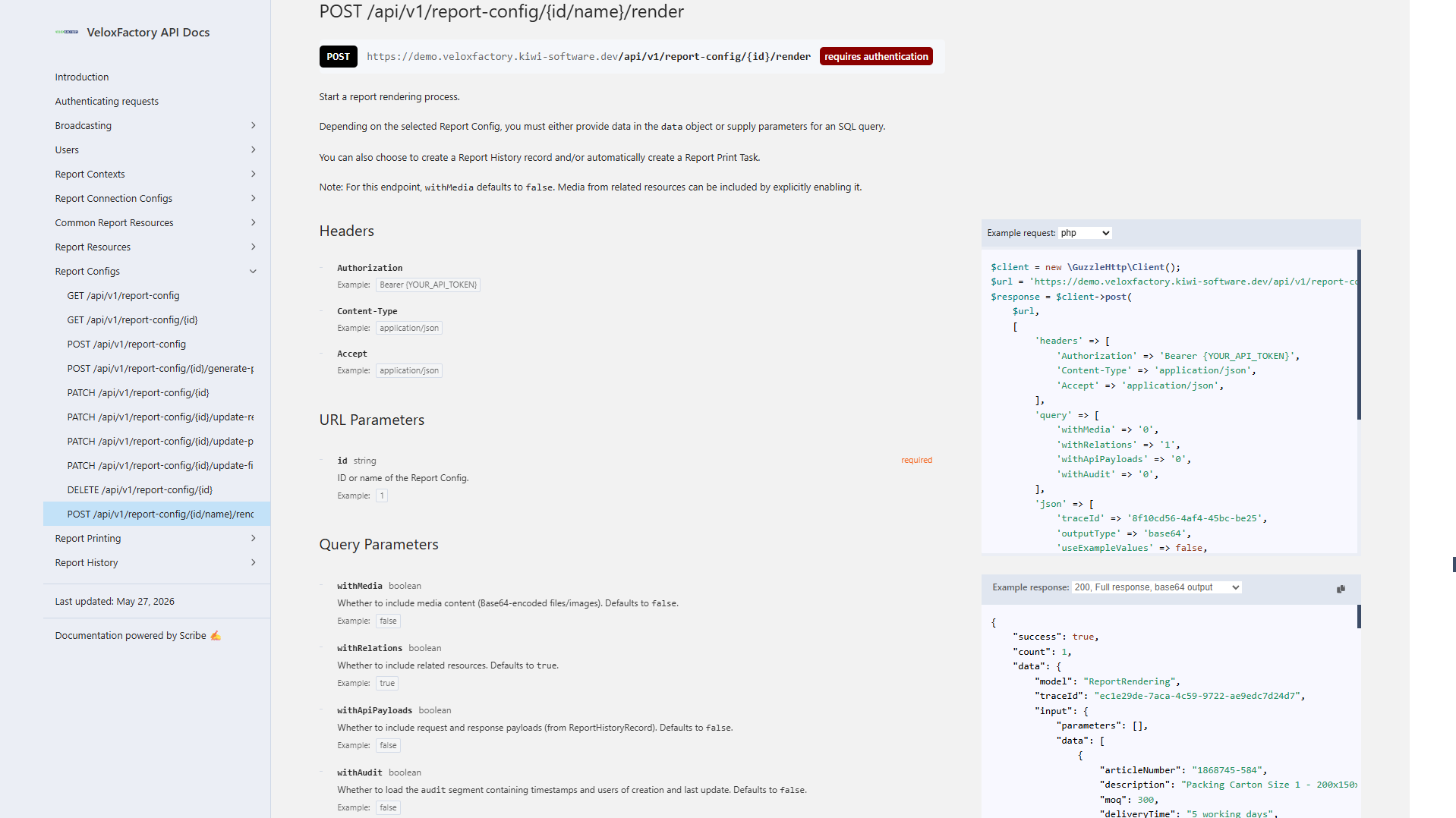
Everything the Generate PDF page does in the browser, the API does programmatically — with more control, lower overhead, and the same rendering engine underneath. A single `POST` request renders a report, optionally logs the result, and optionally dispatches a print job, all in one call.
[](https://docs.veloxfactory.kiwi-software.dev/uploads/images/gallery/2026-05/api-docs.png)
---
The Render Endpoint
```
POST /api/v1/report-config/{id}/render
```
The `{id}` segment accepts either the numeric ID of the `ReportConfig` or its **report name** — the name set in Jaspersoft Studio and stored in VeloxFactory. Both of these are equivalent:
```
POST /api/v1/report-config/1/render
POST /api/v1/report-config/A5_KanBan/render
```
Using the report name is convenient for integrations: it stays stable even if the database record is recreated, and it makes the request self-documenting.
---
Request Body
| Field |
Type |
Required |
Description |
outputType |
string |
✓ |
Output format: base64, url, or none. See below. |
parameters |
object |
|
Key-value map of parameter names to values. Required parameters must be present or the request is rejected. |
data |
array |
|
Array of field objects — one per detail band row. Each object's keys must match the report's field names. Only needed when no SQL connection is configured. |
createHistoryRecord |
boolean |
✓ |
Whether to create a ReportHistoryRecord for this render. Stores the full request, response, and rendered PDF. |
createPrintTask |
boolean |
✓ |
Whether to dispatch the rendered PDF to the print service. |
printerName |
string |
if print task |
Target printer name. Required when createPrintTask is true. |
numberOfCopies |
integer |
|
Number of copies passed to the print service. Defaults to 1. VeloxFactory always renders once — the print service handles duplication. |
broadcastId |
string |
|
WebSocket channel ID. If provided, VeloxFactory broadcasts a ReportPrintTaskCreated event when the print task is created. Omit to rely on polling. |
useExampleValues |
boolean |
|
Use the stored example values instead of supplying parameters and data. Useful for testing. API-only — not available in the frontend. See below. |
laconicResponse |
boolean |
|
Return only the essential output fields instead of the full response. Reduces payload size significantly for high-frequency rendering. See below. |
traceId |
string |
|
Custom trace identifier for this request. Auto-generated (UUID) if not provided. Must be unique across all history records if supplied. |
---
Output Types
The `outputType` field controls how — or whether — the rendered PDF is returned.
**`base64`** — The PDF is Base64-encoded and returned inline in `output.reportPdfBase64`. No file is written to disk. This is the most common choice for integrations that process the PDF immediately.
**`url`** — The PDF is saved to the VeloxFactory history storage and a URL pointing to that file is returned in `output.reportUrl`. Useful when the calling application needs to hand off a link rather than handle raw bytes.
**`none`** — No PDF data is returned at all. Valid only when `createPrintTask` is `true` — the PDF is rendered internally and handed to the print service without being exposed in the response. Use this when the response payload is irrelevant and you only care about getting the document to the printer.
⚠️ outputType: none requires createPrintTask: true. Requesting output type none without a print task is rejected with a validation error — there would be nothing to do with the rendered PDF.
---
useExampleValues — API-only Testing Mode
When `useExampleValues: true` is set, VeloxFactory ignores any `parameters` and `data` in the request body and instead uses the example values stored on the `ReportConfig`. This is the same data used to generate the report preview in the frontend.
It is a convenient way to verify that a report renders correctly after configuration changes — no test data needs to be assembled:
```json
POST /api/v1/report-config/A5_KanBan/render
{
"outputType": "base64",
"useExampleValues": true,
"createHistoryRecord": false,
"createPrintTask": false
}
```
ℹ️ useExampleValues is an API-only feature. The Generate PDF page in the browser always requires parameters and data to be entered manually. For frontend testing, use the example values from the report configuration edit page.
---
laconicResponse — Minimal Output
By default, a successful render response includes the full `ReportConfig` record, the input parameters and data echoed back, and any linked `ReportHistoryRecord` and `ReportPrintTask`. For many production integrations, this detail is unnecessary — the caller only needs the PDF.
Setting `laconicResponse: true` strips the response down to the essentials: just the `traceId` and the `output` block. Everything else — `input`, `reportConfig`, `reportHistoryRecord`, `reportPrintTask` — is omitted.
The two response shapes are shown in detail in the [Response Structure](#response-structure) section below.
ℹ️ The laconic mode also suppresses reportMeta in error responses. If a render fails in laconic mode, the error response contains only the error messages — the field and parameter metadata is not included.
---
A Complete Request
Here is a full render request for a KanBan label — dynamic array data, a parameter, history logging enabled, print task dispatched via WebSocket:
```json
POST /api/v1/report-config/A5_KanBan/render
{
"outputType": "base64",
"parameters": {
"P_ARTICLE_NUMBER": "4561287-154"
},
"data": [
{
"articleNumber": "4561287-154",
"description": "Packing Carton Size 1 - 200x150x50mm",
"moq": 250,
"deliveryTime": "3 Days",
"supplier": "Ninghao Packaging",
"barcode": "5698532145712"
}
],
"createHistoryRecord": true,
"createPrintTask": true,
"printerName": "WarehousePrinter01",
"numberOfCopies": 1,
"broadcastId": "Standard",
"laconicResponse": false
}
```
---
Response Structure
Full Response
The full response (default, `laconicResponse: false` or omitted) includes the rendered output, the echoed input, the full `ReportConfig` snapshot, and any created `ReportHistoryRecord` and `ReportPrintTask`:
```json
{
"success": true,
"count": 1,
"data": {
"model": "ReportRendering",
"traceId": "ec1e29de-7aca-4c59-9722-ae9edc7d24d7",
"input": {
"parameters": { "P_ARTICLE_NUMBER": "4561287-154" },
"data": [
{
"articleNumber": "4561287-154",
"description": "Packing Carton Size 1 - 200x150x50mm",
"moq": 250,
"deliveryTime": "3 Days",
"supplier": "Ninghao Packaging",
"barcode": "5698532145712"
}
]
},
"output": {
"reportPdfFileName": "a7dd0ea5-85fd-481c-998b-fa9819c2e84c.pdf",
"reportPdfBase64": "JVBERi0xLjQ..."
},
"reportConfig": {
"model": "ReportConfig",
"id": 1,
"name": "A5_KanBan",
...
},
"reportHistoryRecord": {
"model": "ReportHistoryRecord",
"id": 4,
"traceId": "ec1e29de-7aca-4c59-9722-ae9edc7d24d7",
"outputType": "Base64",
"status": "Ok"
},
"reportPrintTask": {
"model": "ReportPrintTask",
"id": 4,
"traceId": "ec1e29de-7aca-4c59-9722-ae9edc7d24d7",
"broadcastId": "Standard",
"printerName": "WarehousePrinter01",
"numberOfCopies": 1,
"status": "Pending",
"errorMessage": null
}
},
"meta": [],
"status": 200
}
```
Laconic Response
With `laconicResponse: true`, the response contains only what is needed to retrieve the PDF:
```json
{
"success": true,
"count": 1,
"data": {
"model": "ReportRendering",
"traceId": "555d073b-a630-4096-acd1-643b85ed5cc9",
"output": {
"reportPdfFileName": "8de016b5-4cf9-423a-9575-8c3155e35410.pdf",
"reportPdfBase64": "JVBERi0xLjQ..."
}
},
"meta": [],
"status": 200
}
```
The `traceId` is always included — it links this render to any created history record or print task, making it useful for cross-referencing even in laconic mode.
---
Errors
Validation Errors — HTTP 422
Missing required fields, an invalid `outputType` value, or a missing `printerName` when a print task is requested all produce a `422` response with an `errors` array describing the violations.
Required parameters that are not present in the request also return a `422` — one error message per missing parameter:
```json
{
"success": false,
"errors": [
"Parameter P_DATE_FROM is required.",
"Parameter P_DATE_TO is required."
],
"meta": { "traceId": "..." },
"status": 422
}
```
Render Errors — HTTP 400
If the request passes validation but the renderer itself fails — empty data array for a report with a detail band, a type mismatch between field values and declared Java types, a broken SQL query — the response comes back with HTTP `400` and a `success: false` payload.
In full (non-laconic) mode, a `reportMeta` block is included in the `meta` object alongside the `traceId`. This snapshot lists the report's fields, parameters, and resources at the time of the failure — useful for diagnosing mismatches between the request payload and what the report actually expects:
```json
{
"success": false,
"errors": [
"No data delivered (or fetched via SQL using parameters) while data deliverance is mandatory for reports with detail bands."
],
"meta": {
"traceId": "08deac82-274d-4f56-b9d0-d9fdb6280f8f",
"reportMeta": {
"resourceList": [
{ "parameterName": "P_RESOURCE_LOGO", "fileName": "Logo_Dark.png" }
],
"parameterList": [
{ "parameterName": "P_ARTICLE_NUMBER", "dataType": "java.lang.String" }
],
"fieldList": [
{ "fieldName": "articleNumber", "dataType": "java.lang.String" },
{ "fieldName": "description", "dataType": "java.lang.String" },
{ "fieldName": "moq", "dataType": "java.lang.Integer" },
{ "fieldName": "deliveryTime", "dataType": "java.lang.String" },
{ "fieldName": "supplier", "dataType": "java.lang.String" },
{ "fieldName": "barcode", "dataType": "java.lang.String" }
]
}
},
"status": 400
}
```
If a `ReportHistoryRecord` was requested (`createHistoryRecord: true`), it is still created even when the render fails — the error is recorded in the history entry, which makes it possible to review failed renders from the frontend alongside successful ones.
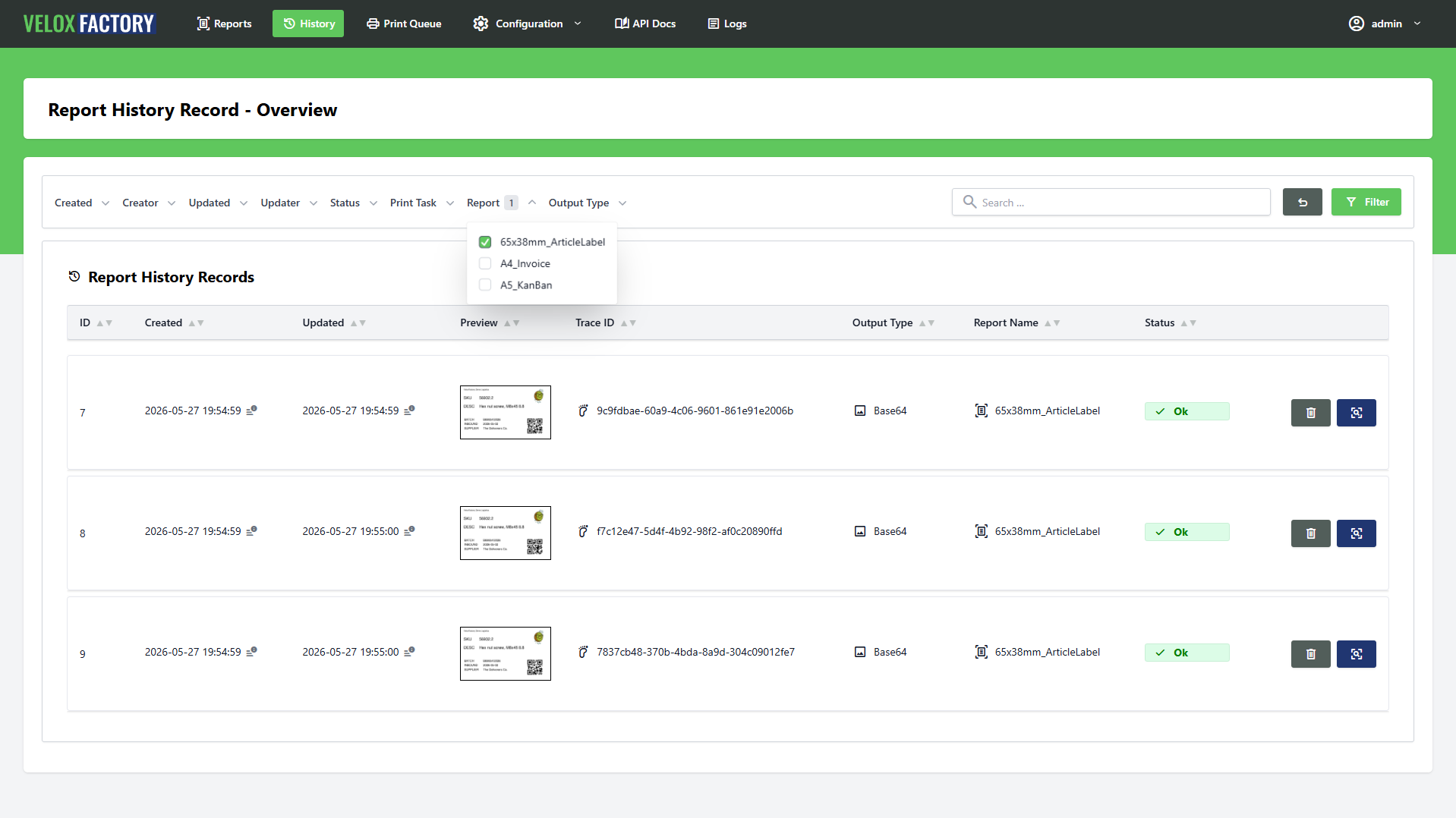
Every render request tells VeloxFactory what to produce. A `ReportHistoryRecord` remembers exactly what was asked for, what came back, and what the result looked like — permanently, until you decide otherwise. It is the foundation for traceability, debugging, and on-demand reprinting in VeloxFactory.
[](https://docs.veloxfactory.kiwi-software.dev/uploads/images/gallery/2026-05/report-history-record-index-filtered.png)
---
What Gets Stored
A `ReportHistoryRecord` is created at render time when `createHistoryRecord: true` is set in the request — or automatically when a print task is dispatched. It captures a complete snapshot of the rendering event:
| Field |
Description |
traceId |
Unique identifier shared across the render request, the history record, and any linked print task. Used to correlate events in logs and across systems. |
reportConfig |
Reference to the ReportConfig that was rendered. |
outputType |
The output type used: base64, url, or none. |
apiPayload |
The complete render request body — parameters, data, flags, everything sent to the render endpoint. Stored as JSON. |
apiResponse |
The complete API response returned by VeloxFactory — including any errors. Stored as JSON. |
reportPdf |
The rendered PDF, Base64-encoded. Present on successful renders; null on failure. |
reportPdfFileName |
The UUID-based filename assigned to the rendered PDF. |
reportThumbnail |
A thumbnail image of the first page of the rendered PDF. Generated asynchronously in the background after the record is created. |
status |
Automatically calculated from the stored response. See below. |
---
Status
The status of a `ReportHistoryRecord` is calculated automatically every time the record is saved, based on the content of the stored API response:
| Status |
Meaning |
| Ok |
No errors in the response and a PDF was produced. The render completed successfully. |
| Error |
The response contains one or more errors. The render failed — the error messages are stored in the API response payload. |
| Render Fail |
No errors in the response, but no PDF was produced either. An edge case indicating something unexpected occurred during rendering. |
| Unknown |
Status could not be determined from the stored response. |
History records are created for both successful and failed renders. A failed render still produces a complete record — including the error messages — which is often more useful than a successful one when something goes wrong.
---
The Thumbnail
When a history record is created, VeloxFactory dispatches a background job that converts the first page of the rendered PDF into a thumbnail image using `pdftoppm` (part of `poppler-utils`). The thumbnail is stored on the record and displayed in the history list and the report card grid — giving you an immediate visual of what was produced without opening the PDF.
ℹ️ Thumbnail generation runs asynchronously. The history record is available immediately after rendering; the thumbnail appears once the background job has completed. This requires the Laravel queue worker (Supervisor) to be running. If the queue is down, thumbnails will not be generated until it is back up.
---
Traceability and Debugging
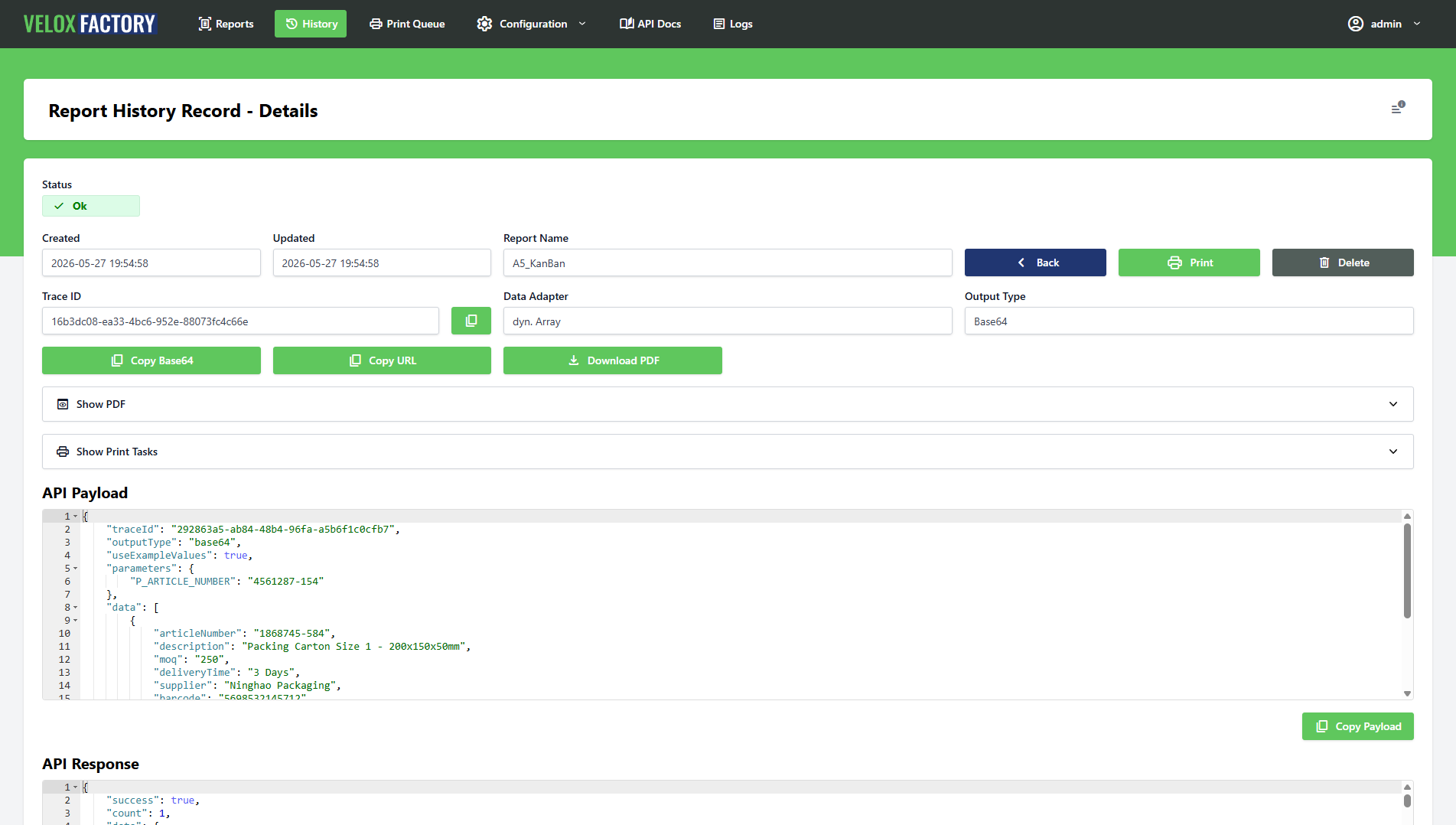
The most valuable aspect of a history record is not the PDF — it is the payload. Every record stores the exact request that triggered the render and the exact response that came back. This means you can answer the following questions at any point in the future, without touching the calling application:
- What parameters were passed to this render?
- What data was submitted?
- Was the render triggered via the frontend or the API?
- What did VeloxFactory return — and did it succeed?
- If it failed, what was the exact error message?
The `traceId` ties everything together. It is present on the history record, on any linked print task, and in the server logs. When something goes wrong in production and you have a `traceId`, you can pull the history record and reconstruct the entire event in seconds.
[](https://docs.veloxfactory.kiwi-software.dev/uploads/images/gallery/2026-05/report-history-record-show.png)
---
Reprinting from a History Record
A successful history record holds the rendered PDF. That PDF can be dispatched to a printer at any time — without re-rendering the report — using the dedicated print endpoint:
```
POST /api/v1/report-history-record/{id}/print
```
```json
{
"printerName": "WarehousePrinter01",
"numberOfCopies": 1
}
```
VeloxFactory creates a new `ReportPrintTask` from the stored PDF, assigns it a derived trace ID (the original trace ID with a short random suffix), and dispatches it to the print service. The original history record is linked to the new print task.
This is useful in several scenarios: a print job failed and needs to be retried, a physical document was lost and needs to be reprinted, or a record needs to be dispatched to a different printer than the one originally used.
ℹ️ Reprinting uses the stored PDF — it does not re-render the report. The document produced is identical to the original. If the report template or its data has changed since the original render, those changes are not reflected in the reprint.
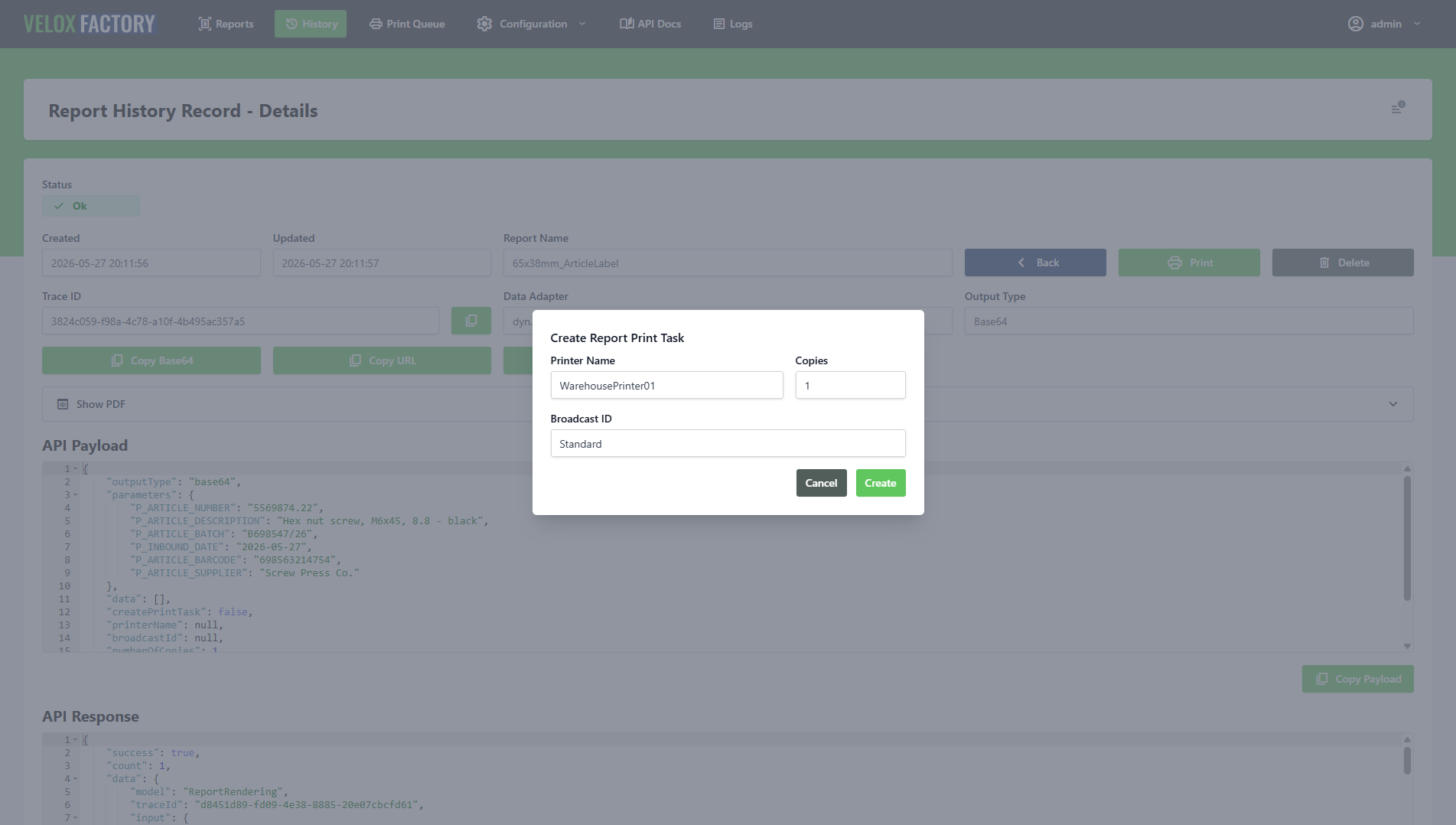
This endpoint is also available directly from the frontend — the history record detail view has a **Print** button that opens a modal to enter the printer name and number of copies.
[](https://docs.veloxfactory.kiwi-software.dev/uploads/images/gallery/2026-05/report-history-record-print-modal.png)
---
Retention and Deletion
Automatic Purging
History records are automatically purged after a configurable number of days. The retention period is set via the `PURGE_HISTORY_DAYS` environment variable (default: 30 days). Purging runs as a scheduled background job — no manual intervention required.
Deletion Constraints
A `ReportHistoryRecord` cannot be deleted while any `ReportPrintTask` still references it. The linked print tasks must be removed first. VeloxFactory provides a dedicated endpoint for this:
```
DELETE /api/v1/report-history-record/{id}/delete-all-report-print-tasks
```
This removes all print tasks associated with the record in one call, after which the history record itself can be deleted.
Impact on ReportConfig Deletion
A `ReportConfig` cannot be deleted while any history records reference it. This is a deliberate constraint: the history exists as a permanent trace of what was rendered using that configuration. To remove a report configuration entirely, its history records — and their linked print tasks — must be cleared first, either manually or by waiting for the automatic purge to run.