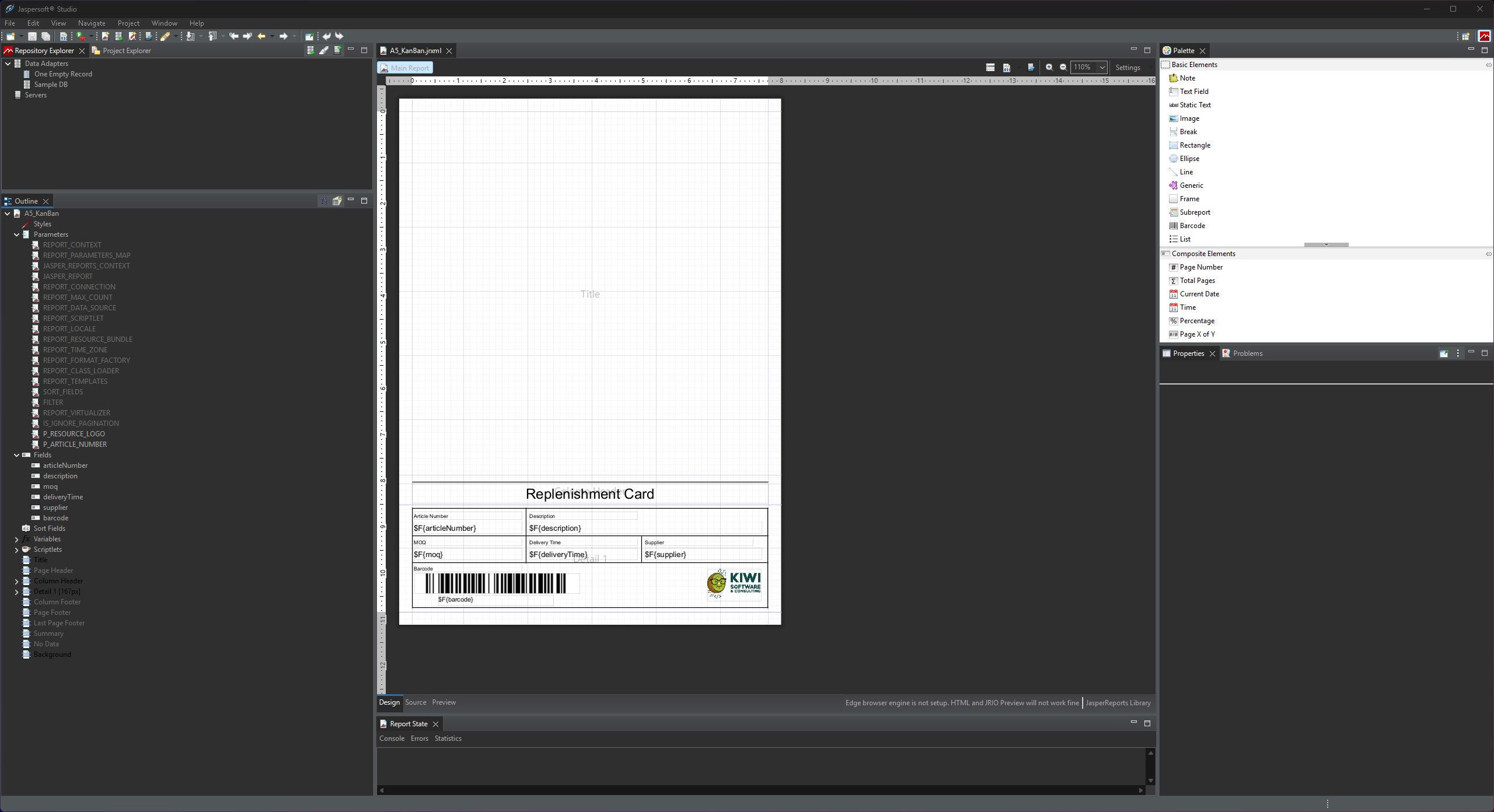
VeloxFactory renders reports defined as `.jrxml` files — the native format of JasperReports. These files are designed in **Jaspersoft Studio**, a free desktop IDE built specifically for this purpose. This page explains how to set up a `.jrxml` file so that VeloxFactory can analyse it correctly, register all its parts, and render it reliably.
[](https://docs.veloxfactory.kiwi-software.dev/uploads/images/gallery/2026-05/jaspersoft-studio-overview.png)
---
Jaspersoft Studio
Jaspersoft Studio is an Eclipse-based visual report designer. You use it to lay out the report template — define what data goes where on the page, how it is formatted, and which inputs the report expects. The resulting `.jrxml` file is then uploaded to VeloxFactory, which takes over everything from there: storing it, analysing it, connecting it to a data source, and rendering it on demand.
ℹ️
Use version 6.21.5. This is the version compatible with VeloxFactory. Download it from the
Jaspersoft Community. Reports created with a significantly newer version may use features that VeloxFactory's render engine does not support.
The division of responsibilities between Jaspersoft Studio and VeloxFactory is clear:
- **Jaspersoft Studio** defines the layout, the parameters, the fields, and the visual design of the report.
- **VeloxFactory** manages the SQL query, the data connection, and the actual rendering at runtime.
This means you will see a `
` element in Jaspersoft Studio — but as explained [below](#the-query), you leave it empty. VeloxFactory supplies the query separately.
---
The Report Name
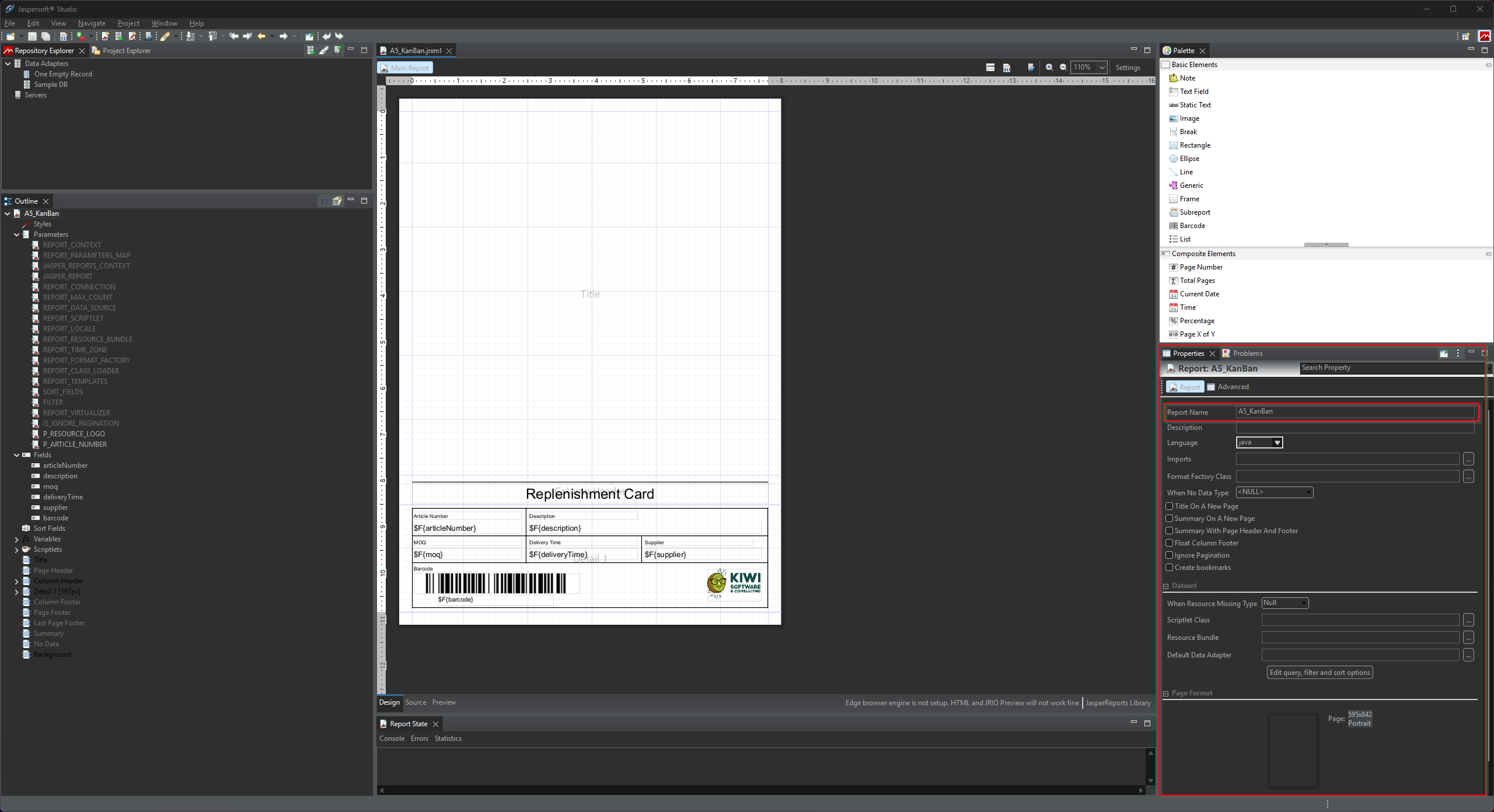
Every Jaspersoft Studio project has a **Report Name** — the `name` attribute on the root `` element. This is not just a filename: VeloxFactory reads it directly from the `.jrxml` on upload and stores it as `report_name` on the `ReportConfig`.
```xml
```
This name must be **unique** across all report configurations in VeloxFactory. If you try to upload a `.jrxml` whose report name already exists, the upload will be rejected. The same applies to the file name itself.
⚠️ Set a descriptive, unique report name in Jaspersoft Studio before uploading. You can change it in Jaspersoft Studio via File → Report Properties → Report Name, or directly in the XML. Changing it after upload requires re-uploading the file.
[](https://docs.veloxfactory.kiwi-software.dev/uploads/images/gallery/2026-05/jaspersoft-studio-report-properties.png)
---
Parameters
Parameters are **input values** passed into the report at render time. They are used inside the report layout via `$P{PARAMETER_NAME}` expressions — for example to display a customer name in the title, filter by a date range, or pass a document number into a barcode expression.
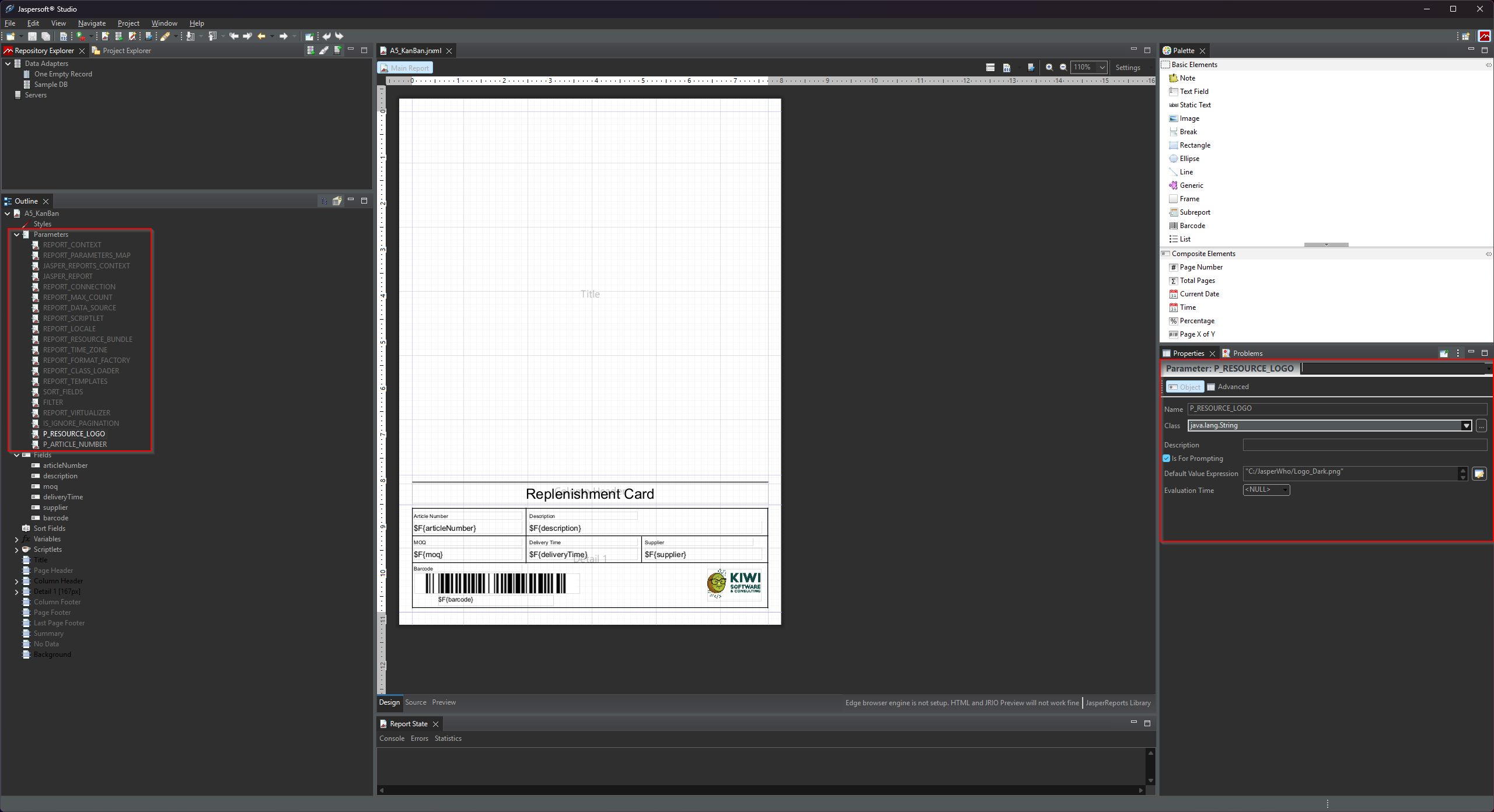
You define parameters in Jaspersoft Studio via the **Report Inspector → Parameters** section. Each parameter has a name and a Java data type.
[](https://docs.veloxfactory.kiwi-software.dev/uploads/images/gallery/2026-05/jaspersoft-studio-parameter-properties.png)
Custom Properties: exampleValue and required
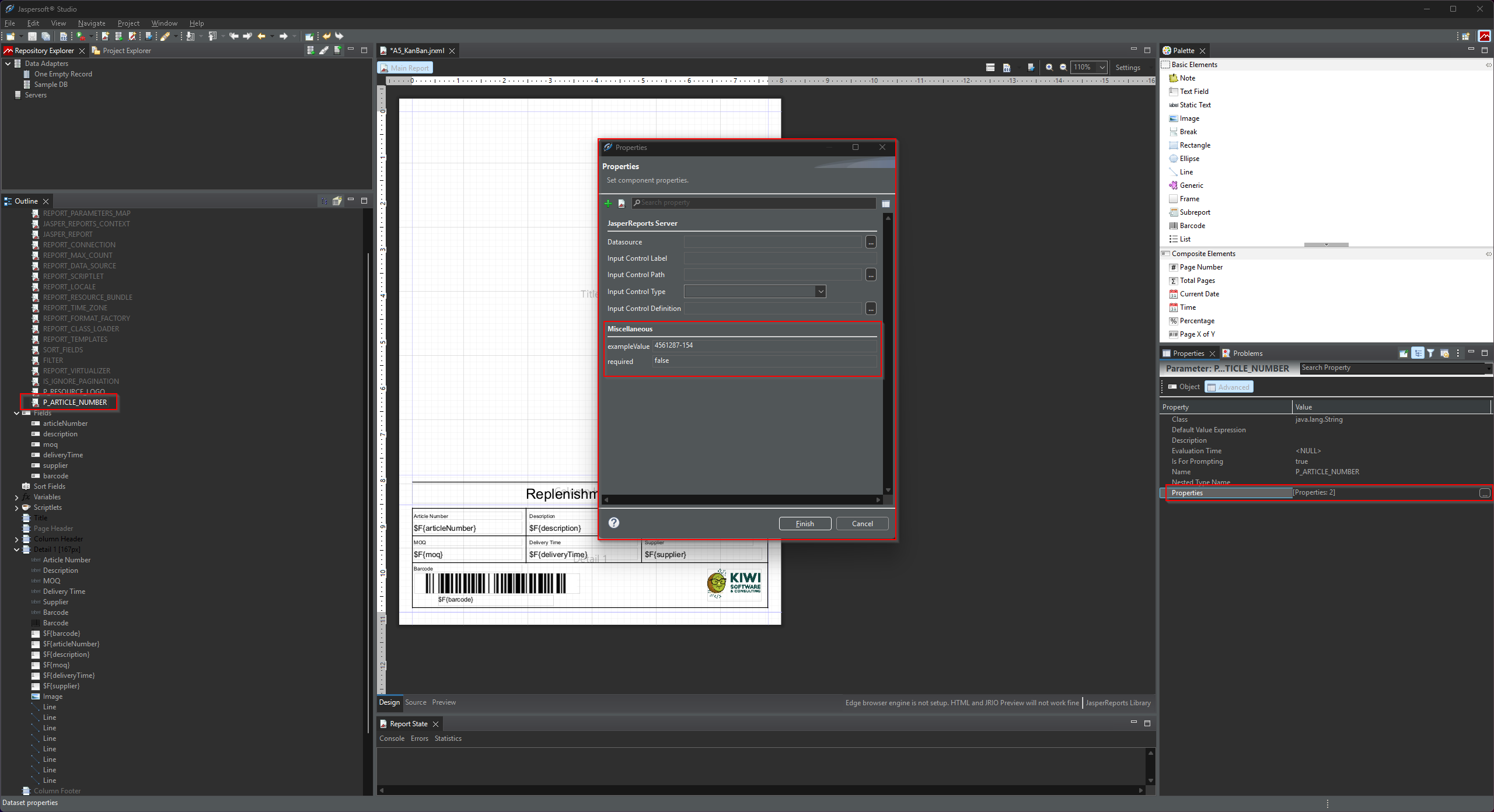
VeloxFactory reads two custom properties from each parameter definition: `exampleValue` and `required`. These are not standard Jaspersoft features — they are custom `` elements you add manually to the parameter in the `.jrxml`. VeloxFactory's analyser (`JasperFunctions::analyzeReportFile`) extracts them on upload.
| Property |
Value type |
Purpose |
exampleValue |
string |
A representative value used when rendering a preview of the report without real data. Also pre-fills the parameter input in the frontend render form. |
required |
boolean (true / false) |
Whether this parameter must be provided in every render request. VeloxFactory rejects render requests that are missing a required parameter. |
Both properties can also be set or updated manually in VeloxFactory after upload — they do not have to come from the `.jrxml`. But embedding them in the file means they are automatically picked up every time the report is uploaded or re-uploaded.
To add these properties in Jaspersoft Studio, open the parameter in the **Report Inspector**, switch to the **Properties** panel, and add a new custom property via the green **+** button.
[](https://docs.veloxfactory.kiwi-software.dev/uploads/images/gallery/2026-05/jaspersoft-studio-parameter-custom-properties.png)
Supported Data Types
VeloxFactory supports the following Java class types for parameters. The type determines how the input field is rendered in the frontend and how the value is handled at render time.
| Java class |
Frontend input |
Notes |
java.lang.String |
Text field |
General-purpose text input |
java.lang.Boolean |
Toggle |
Rendered as a checkbox/toggle switch |
java.lang.Short |
Integer input |
Range: −32,768 to 32,767 |
java.lang.Integer |
Integer input |
Range: −2,147,483,648 to 2,147,483,647 |
java.lang.Long |
Integer input |
64-bit integer |
java.lang.Float |
Decimal input |
Single-precision floating point |
java.lang.Double |
Decimal input |
Double-precision floating point |
java.math.BigDecimal |
Decimal input |
Arbitrary-precision decimal; preferred for monetary values |
java.sql.Date |
Date picker |
Date only (no time) |
java.util.Date |
Date picker |
Date only (no time) |
java.sql.Time |
Time picker |
Time only (HH:mm) |
java.sql.Timestamp |
Date + time picker |
Combined date and time (datetime-local) |
---
Fields
Fields represent the **data columns** that populate the report's detail band — the repeating section that produces one row of output per data record. Each field corresponds to a column in the SQL query result (when using a live connection) or a key in the data array delivered at render time via the API.
You define fields in Jaspersoft Studio via the **Report Inspector → Fields** section. In the report layout, you reference them via `$F{FIELD_NAME}` expressions inside text fields in the detail band.
[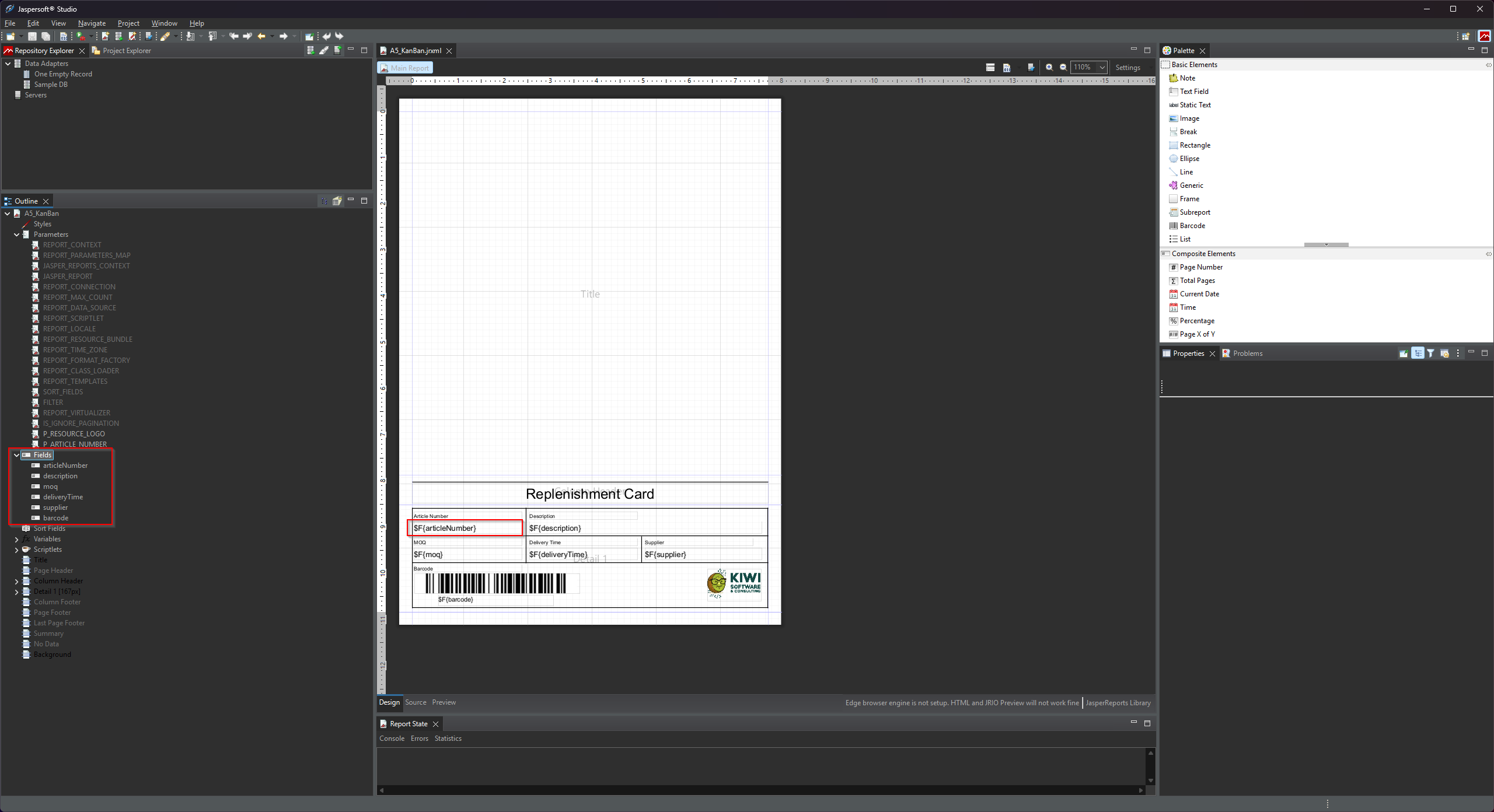](https://docs.veloxfactory.kiwi-software.dev/uploads/images/gallery/2026-05/jaspersoft-studio-fields.png)
Custom Property: exampleValue
Fields support one custom property: `exampleValue`. It works the same way as for parameters — a representative value used when rendering a preview of the report without a live data connection. VeloxFactory collects these example values and assembles a synthetic data row from them for preview rendering.
You add `exampleValue` to a field the same way as for parameters: open the field in the **Report Inspector**, go to the **Properties** tab, and add the custom property.
ℹ️ Set meaningful example values for all fields. Without them, VeloxFactory cannot generate a preview or thumbnail for the report configuration. The values do not need to be real data — they just need to be type-compatible and representative enough to make the preview look sensible.
Fields support the same Java data types as parameters (see the table above). Use the type that matches the column type your SQL query or data array will produce.
---
Using Parameters as SQL Variables
When a `ReportConfig` has a `ReportConnectionConfig` assigned, VeloxFactory executes the SQL query defined in the report configuration against that live database connection. Parameters passed in the render request are available as **named bindings** inside that query — using the standard `:parameterName` syntax from Laravel's Eloquent database layer.
This means you can reference any parameter directly in your SQL to filter, sort, or limit the result set:
```sql
SELECT
article_number AS articleNumber,
description,
moq,
delivery_time AS deliveryTime,
supplier,
barcode
FROM articles
WHERE article_number = :P_ARTICLE_NUMBER
```
In this example, `:P_ARTICLE_NUMBER` is replaced at query execution time with the value of the `P_ARTICLE_NUMBER` parameter from the render request. The binding is handled natively by PDO — values are passed as proper prepared statement parameters, not interpolated as strings.
ℹ️ Only parameters that are actually referenced in the query are bound. VeloxFactory scans the query for :name placeholders before execution and silently drops any parameters that are not needed. Passing extra parameters in the render request will never cause a query error.
The parameter name in the query binding must match the parameter name exactly as defined in the `.jrxml` — including case. For example, a parameter named `P_ARTICLE_NUMBER` in the report must be referenced as `:P_ARTICLE_NUMBER` in the SQL query.
You can use as many parameters as needed across `WHERE`, `ORDER BY`, `LIMIT`, or any other clause that accepts a value binding. Note that named bindings cannot be used for identifiers like table or column names — only for values.
---
Resources (Images and Logos)
If your report contains images — a company logo, a header graphic, a product photo — these are defined as **resource parameters** in the `.jrxml`. VeloxFactory detects them automatically on upload and creates a `ReportResource` record for each one.
The naming convention is strict: **every resource parameter must start with `P_RESOURCE_`** and must have the Java class `java.lang.String`. At render time, VeloxFactory replaces the parameter value with the actual file path of the uploaded image on the server.
```xml
```
In the report layout, you then bind this parameter to an image element:
```xml
```
The `` is used only in Jaspersoft Studio for design-time preview purposes. VeloxFactory ignores it at render time — it always uses the uploaded file path instead. You can point it to a local file on your design machine.
⚠️ Resource parameters are not treated as regular parameters in VeloxFactory. They do not appear in the Parameters section — they appear in the Resources section. You do not pass them in the render request; VeloxFactory fills them in automatically when rendering.
After uploading the `.jrxml`, you must go to the **Resources** section of the report configuration in VeloxFactory and upload the actual image file for each detected resource. A report cannot be rendered until all its resources have files assigned.
[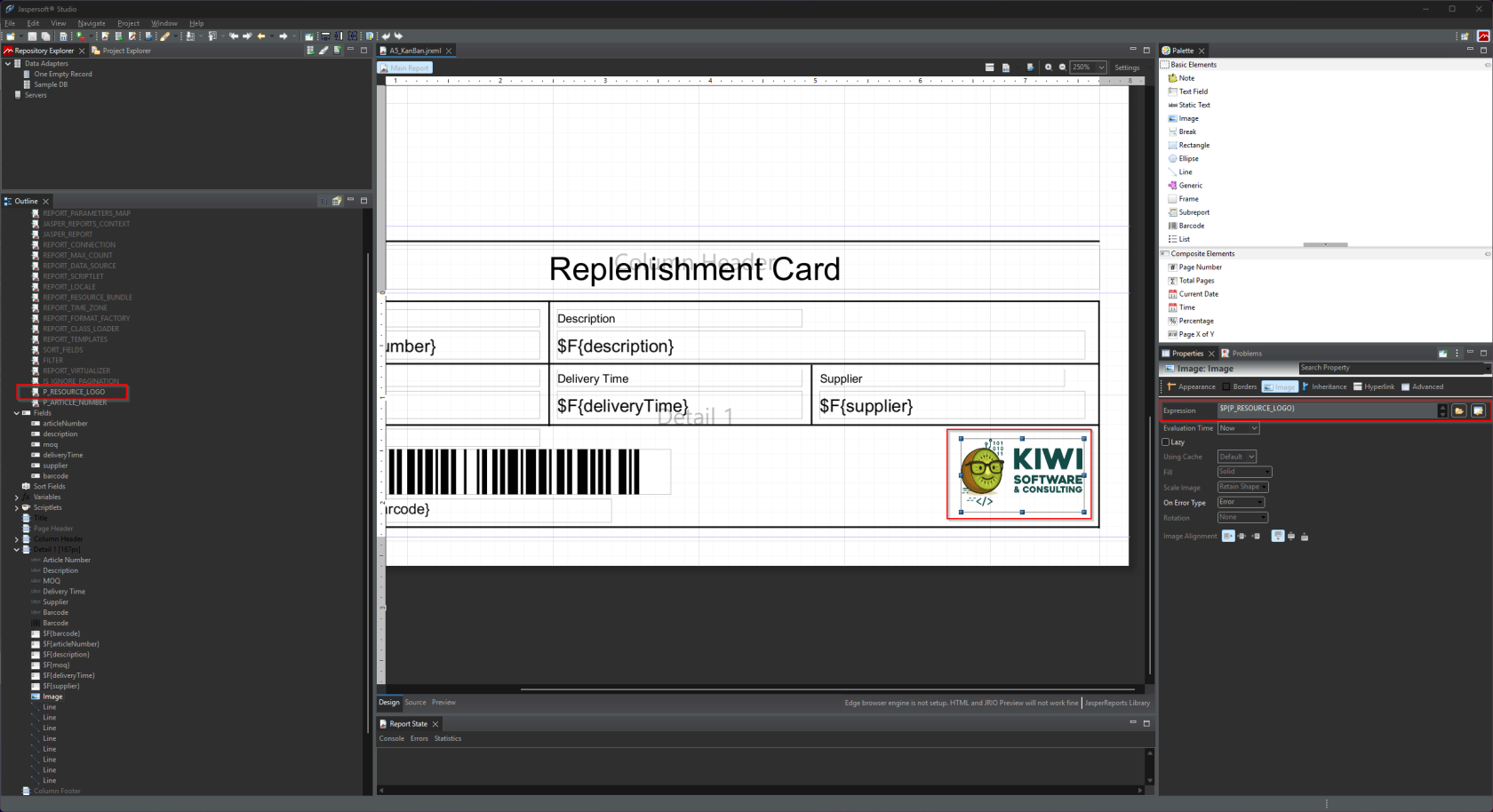](https://docs.veloxfactory.kiwi-software.dev/uploads/images/gallery/2026-05/jaspersoft-studio-image-resource.png)
---
The Detail Band
The detail band is the repeating section of the report — the part that outputs one row per data record. If your report displays a list of items, a table, or any kind of repeating structure, it lives in the detail band.
VeloxFactory checks whether a detail band is present when analysing the `.jrxml`:
- If a detail band exists, VeloxFactory expects data to be provided at render time — either via a live SQL connection or via the `data` array in the API request.
- If no detail band exists, the report is treated as a **static layout** — no data is needed, only parameters.
⚠️ If you add a detail band, it must contain at least one text field element that uses a field expression ($F{...}). A detail band that exists but displays no field data will be rejected on upload. VeloxFactory uses the presence of text fields in the band as a basic integrity check.
Reports without a detail band are perfectly valid — they are useful for documents like cover pages, summary sheets, or any report whose content is entirely driven by parameters rather than repeated rows.
---
The SQL Query
Jaspersoft Studio has a built-in `` element where you would normally write the SQL query for the report. **In VeloxFactory, this element is ignored.** The SQL query is instead defined and stored directly in VeloxFactory as part of the `ReportConfig` — not in the `.jrxml` file.
This means you should **leave the `` empty** when creating a `.jrxml` for VeloxFactory:
```xml
```
You write the actual SQL query in VeloxFactory after uploading the report, in the **Query** field of the report configuration. This design keeps the query where it can be managed, versioned, and changed without touching the report template file.
The query result columns must match the field names you defined in the `.jrxml`. For example, if your report has a field named `articleNumber`, your SQL query must return a column called `articleNumber`.
---
The Data Adapter
Jaspersoft Studio uses **Data Adapters** to connect to a live database so you can preview your report during design. This is entirely a design-time feature — the data adapter you configure in Jaspersoft Studio has no effect in VeloxFactory and is not stored in the `.jrxml`.
At render time, VeloxFactory always uses its own internal array-based adapter to pass data to JasperReports. Whether that data comes from an SQL query executed against a `ReportConnectionConfig` or from a data array in the API request, VeloxFactory always handles the data handoff itself.
You still benefit from configuring a data adapter in Jaspersoft Studio during development — it lets you see a realistic preview while designing the layout. Just be aware that the adapter configuration stays local to your machine.
---
Annotated Example
The following is a complete, minimal `.jrxml` that demonstrates everything discussed on this page. It is the actual `A5_KanBan` report included in the VeloxFactory demo. Inline comments explain each relevant element.
```xml
pageWidth="595"
pageHeight="842"
...>
```
ℹ️ This example has been simplified for clarity. A real .jrxml contains many additional attributes, layout elements, and Studio-specific property annotations. The elements shown here are the ones VeloxFactory actively reads and acts on — everything else is passed through to JasperReports as-is.
---
Pre-Upload Checklist
Before uploading a `.jrxml` to VeloxFactory, verify the following:
- The **Report Name** (`name` attribute on ``) is set, descriptive, and unique.
- All **resource parameters** follow the `P_RESOURCE_` naming convention and have class `java.lang.String`.
- All **regular parameters** have `exampleValue` and `required` custom properties set where applicable.
- All **fields** have an `exampleValue` custom property set.
- The **``** is empty — the SQL is managed in VeloxFactory.
- If the report has a **detail band**, it contains at least one `` with a `$F{...}` expression.
- The report **previews correctly in Jaspersoft Studio** using the local data adapter — this confirms the layout and expressions are valid before upload.
A report in VeloxFactory is more than a file. It is a fully managed configuration — with its own parameters, data fields, image resources, SQL query, data connection, preview images, rendering history, and print records. This page walks through the complete lifecycle of a report configuration, from upload to print.
[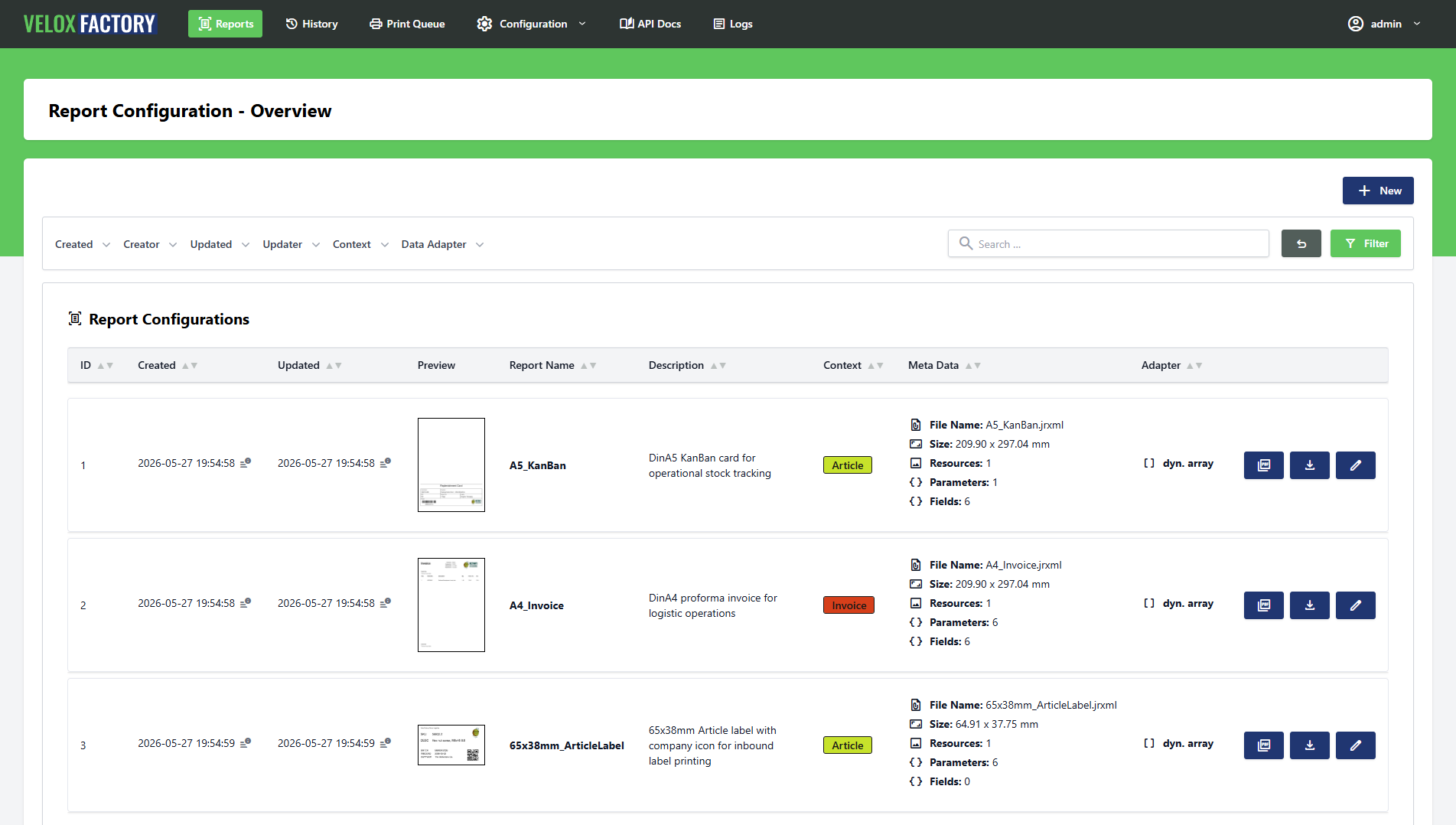](https://docs.veloxfactory.kiwi-software.dev/uploads/images/gallery/2026-05/report-config-index.png)
---
The ReportConfig — Central Master Data
The `ReportConfig` is the core entity in VeloxFactory. Every report you manage is a `ReportConfig` record, and everything else in the system either belongs to it or references it. A single `ReportConfig` brings together:
- The **`.jrxml` template file** stored on disk
- Its **parameters** — input values passed at render time
- Its **fields** — data columns that populate the detail band
- Its **resources** — graphic assets (images, logos) embedded in the template
- Its **SQL query** — defined and managed directly in VeloxFactory
- Its **data connection** — the live database to query (optional)
- Its **context** — an organisational label for grouping
- Its **preview and thumbnail images** — generated from example data
Nothing renders without a `ReportConfig`. Nothing prints without one either. It is the starting point for every operation in VeloxFactory.
---
The Report Configuration Lifecycle
```
Upload .jrxml
│
▼
Auto-analysis
(parameters, fields, resources detected and created)
│
▼
Complete the configuration
(upload resource files, set example values, write SQL query, assign connection)
│
▼
Generate preview
(renders with example data, stores preview + thumbnail)
│
▼
Ready to render
```
Each step is described in detail below.
---
Uploading a Report
When you upload a `.jrxml` file, VeloxFactory immediately analyses it and builds the initial configuration automatically. The following is extracted from the file:
- **Report name** — from the `name` attribute on `
`. Must be unique.
- **Page dimensions** — width and height, converted from Jasper pixels to millimetres.
- **Detail band presence** — whether the report has a repeating data section.
- **Parameters** — all non-resource parameters, including their data types and any `exampleValue` / `required` custom properties set in the `.jrxml`.
- **Fields** — all data fields, including their data types and `exampleValue` custom properties.
- **Resources** — all parameters following the `P_RESOURCE_` naming convention (image assets).
The result is a fully structured `ReportConfig` record with all its child records in place — but not yet complete. Resource files still need to be uploaded, and the SQL query still needs to be written if a live data connection is used.
⚠️ Report name and file name must be unique. VeloxFactory will reject an upload if a ReportConfig with the same report name or the same file name already exists.
[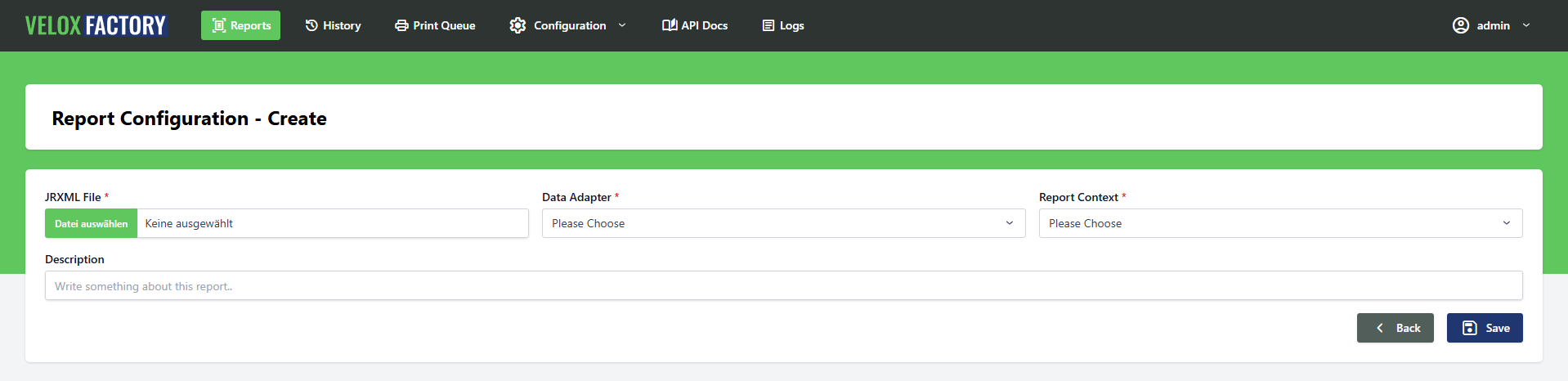](https://docs.veloxfactory.kiwi-software.dev/uploads/images/gallery/2026-05/report-config-create.png)
---
Completing the Configuration
After upload, the report configuration is ready but not yet fully operational. The following steps complete it:
Upload Resource Files
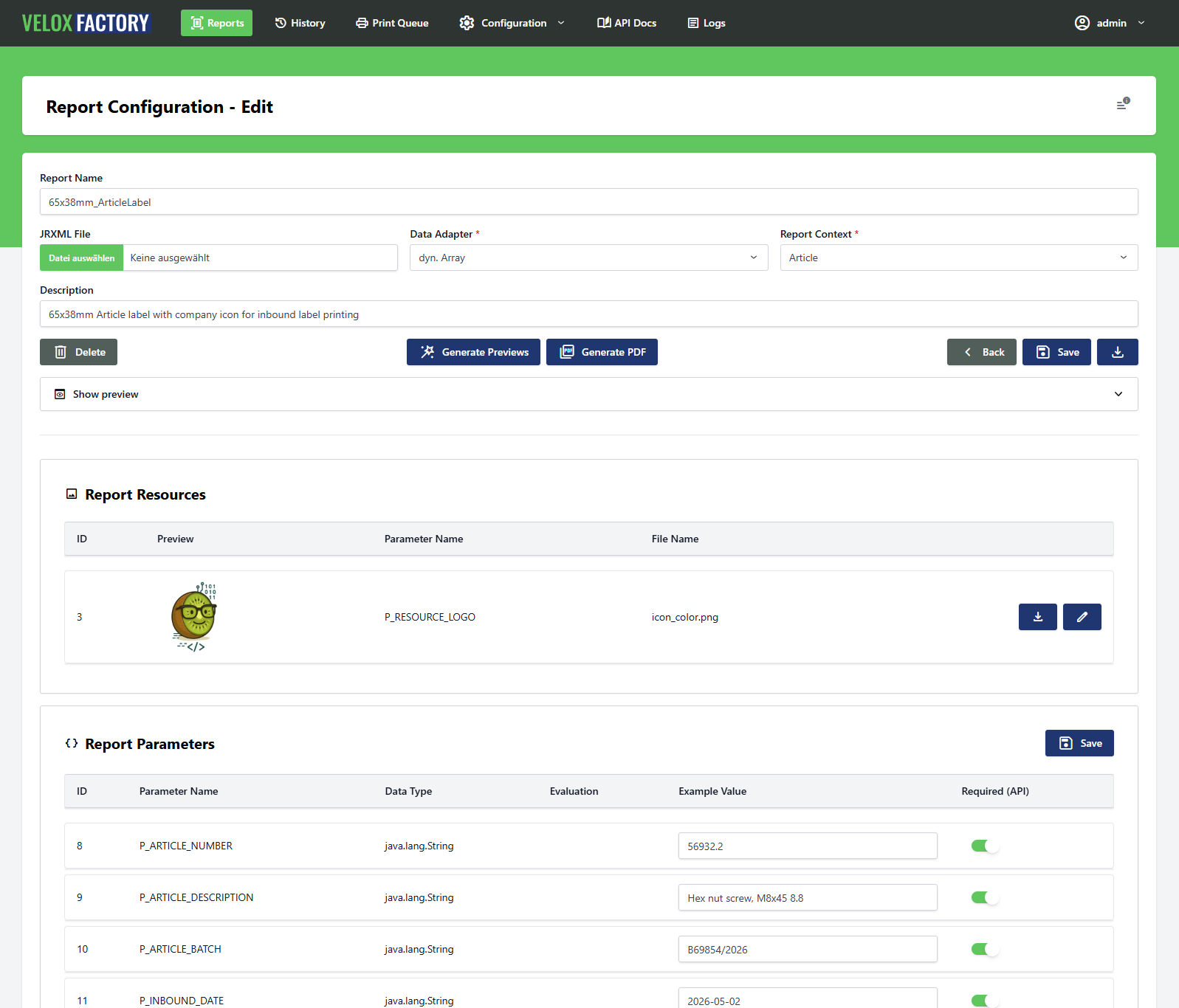
If the report contains image resources (detected as `P_RESOURCE_` parameters), each one requires an actual file to be uploaded. VeloxFactory cannot render the report until all resource files are in place.
Alternatively, a resource can be linked to a `CommonReportResource` — a shared asset reused across multiple reports, such as a company logo. Linking is permanent: the resource's own file is deleted and the common file is used in its place.
[](https://docs.veloxfactory.kiwi-software.dev/uploads/images/gallery/2026-05/report-config-edit.png)
Review Parameters and Fields
VeloxFactory picks up `exampleValue` and `required` custom properties from the `.jrxml` automatically on upload. If these were not set in Jaspersoft Studio, or if you need to adjust them, you can do so directly in the configuration.
Every parameter and field should have an example value set before generating a preview.
Write the SQL Query and Assign a Connection
If the report fetches live data from a database, assign a `ReportConnectionConfig` and write the SQL query in the **Query** field. The query is stored in VeloxFactory — not in the `.jrxml`.
Parameters are available as named bindings in the query (`:PARAMETER_NAME`). See [Creating reports in Jaspersoft Studio](/books/veloxfactory/page/creating-reports-in-jaspersoft-studio) for details on how parameter binding works.
A connection is not required if the report has no detail band, or if data will be delivered in the render request itself.
---
Generating a Preview
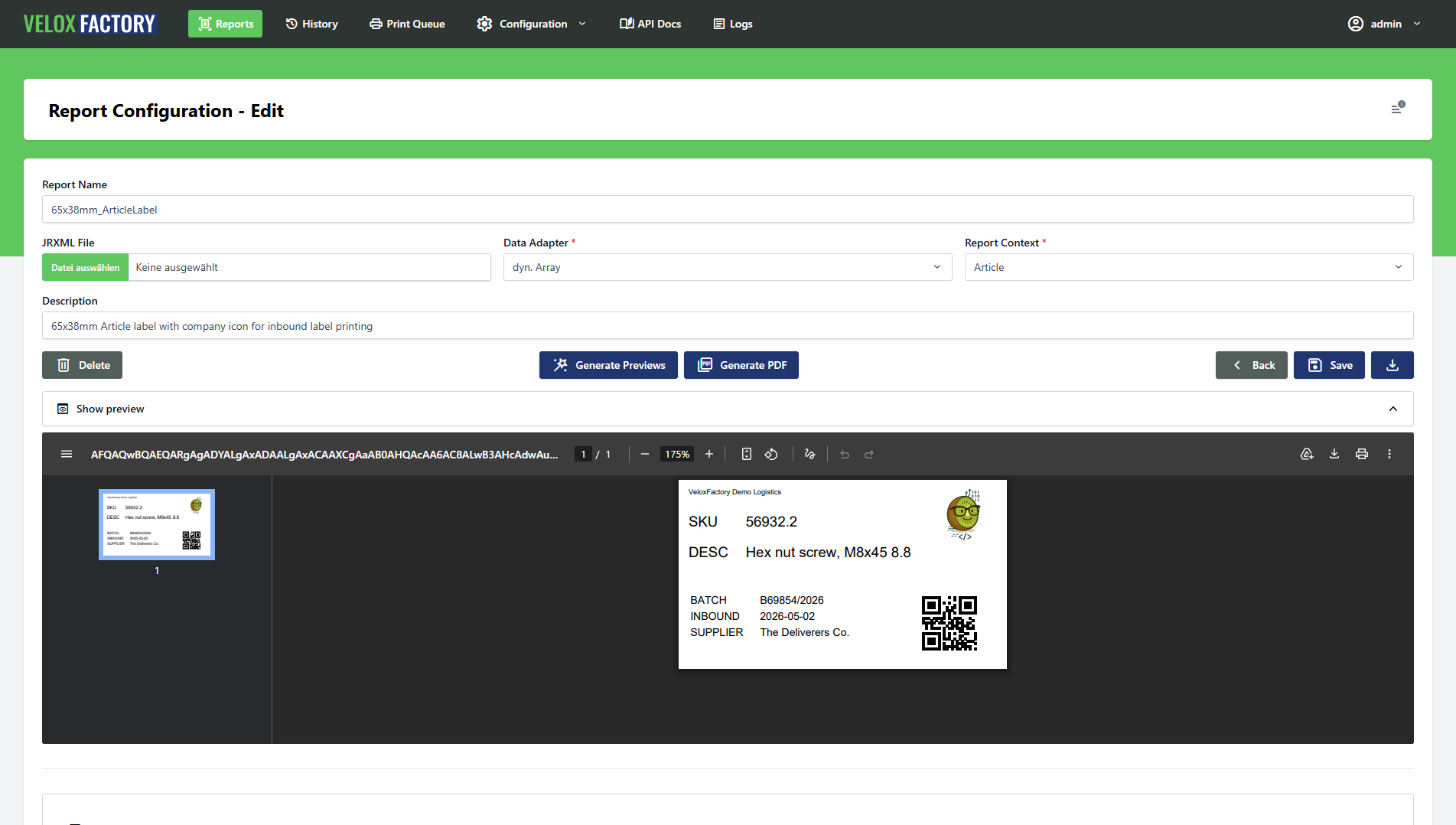
Once all resource files are uploaded and all parameters and fields have example values, you can generate a preview. VeloxFactory renders the report using the stored example values — no live data needed — and stores the result as a base64-encoded PDF and a thumbnail image on the `ReportConfig`.
The preview is used in the report list as a visual card and as a quick sanity check that the template renders correctly. It is also what the `useExampleValues` flag triggers during a render request — useful for testing without providing real data.
ℹ️ Preview generation will fail if any resource file is missing or any example value is not set. VeloxFactory checks all three conditions — resources, parameter example values, and field example values — before attempting to render.
[](https://docs.veloxfactory.kiwi-software.dev/uploads/images/gallery/2026-05/report-config-edit-preview.png)
---
Report History Records
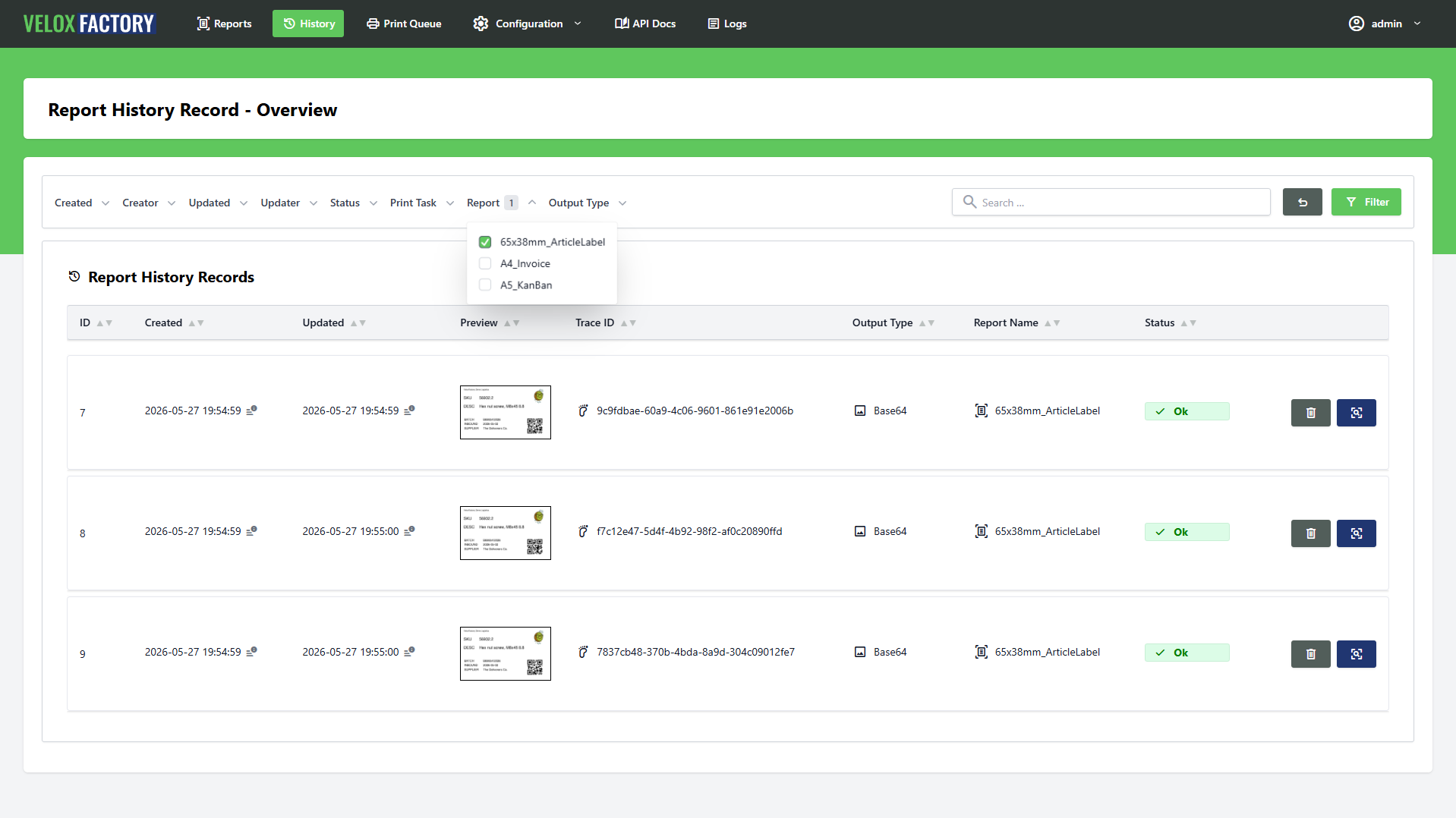
Every render request can optionally create a `ReportHistoryRecord` — a full log entry of what was requested and what was returned. This is controlled by the `createHistoryRecord` flag in the render request body and is **off by default**.
When enabled, the history record captures:
- The exact request payload sent to the render endpoint
- The full API response
- The rendered PDF (Base64-encoded)
- A thumbnail of the first page (generated asynchronously in the background)
- The rendering status (`ok`, `render_fail`, `error`, `unknown`)
- The trace ID for cross-referencing with logs
History records are valuable for traceability — you can see exactly what was rendered, when, with what data, and what the result was. From a history record, you can also dispatch a reprint directly.
When to Skip History Records
History records are entirely optional. There are two good reasons to leave them off:
**Performance and storage.** Storing the full PDF, request payload, and response for every render adds up. For high-frequency rendering where traceability is not needed, skipping history records keeps the database lean.
**Data sensitivity.** A history record stores the complete render payload — including all parameters and data passed to the report. If that data is sensitive (personal data, financial figures, medical information), you may not want it persisted on the server at all. Omitting `createHistoryRecord` from the render request ensures nothing is logged.
Retention
History records are automatically purged after a configurable number of days. The retention period is set via the `PURGE_HISTORY_DAYS` environment variable (default: 30 days). Purging runs automatically as a background job — no manual intervention required.
[](https://docs.veloxfactory.kiwi-software.dev/uploads/images/gallery/2026-05/report-history-record-index-filtered.png)
---
Report Print Tasks
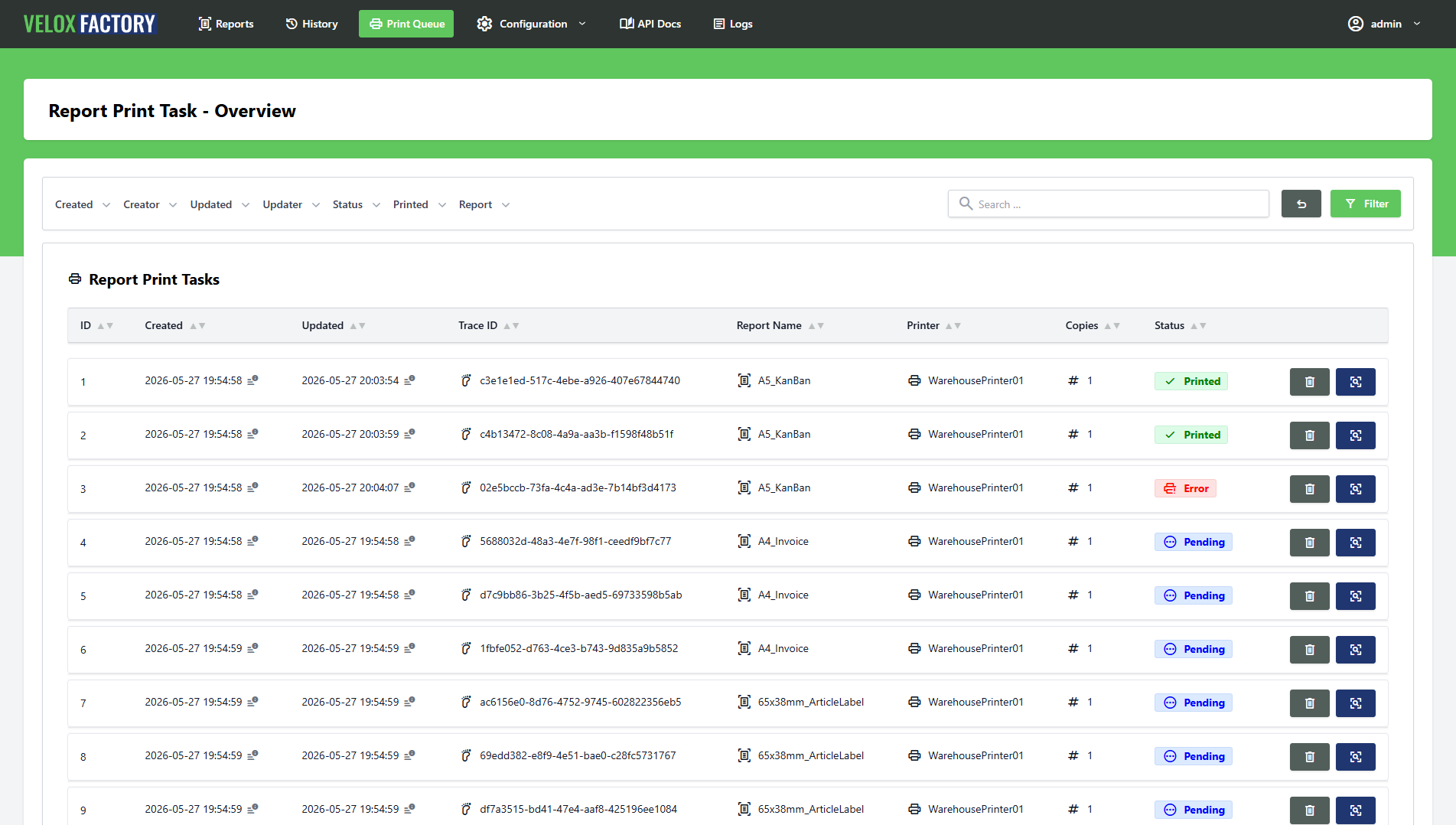
A `ReportPrintTask` sends a rendered PDF to a physical printer. Print tasks are created as part of a render request — you render and dispatch to a printer in a single call — by setting `createPrintTask: true` and providing a `printerName`.
Print tasks are always linked to a `ReportHistoryRecord`. This means creating a print task also creates a history record (regardless of whether `createHistoryRecord` is explicitly set), so the printed document is always traceable.
How Printing Works
VeloxFactory does not communicate with printers directly. Instead, it creates a `ReportPrintTask` record and notifies a separate print service — a lightweight C# application running on or near the target machine — which picks up the task and executes the print job.
There are two modes of delivery:
**WebSocket (push).** If a `broadcastId` is included in the render request, VeloxFactory broadcasts a `ReportPrintTaskCreated` event via WebSocket (Laravel Reverb) the moment the task is created. The print service subscribes to that channel and reacts immediately. This is the recommended mode for real-time printing — the task reaches the printer within milliseconds of the render completing.
**Polling (pull).** Without a `broadcastId`, no broadcast is sent. The print service must poll the API for new tasks in `pending` status. This works fine for less time-sensitive workflows.
Print Task Status
| Status | Meaning |
|---|---|
| pending | Created, waiting for the print service to pick it up |
| printed | Print job executed and confirmed by the print service |
| error | Print service reported a failure |
| unknown | Status could not be determined |
The print service reports status back to VeloxFactory via the API after executing the job. The `error_message` field on the task record contains the failure detail if printing did not succeed.
Copies
The `numberOfCopies` field is passed to the print service as the requested number of printed copies. It defaults to `1` if not specified. VeloxFactory always renders the PDF exactly once — the print service is responsible for duplicating the output on the printer side.
ℹ️ Print tasks also have configurable retention. They are automatically purged after PURGE_PRINTTASKS_DAYS days (default: 30). Like history record purging, this runs in the background without any manual action.
[](https://docs.veloxfactory.kiwi-software.dev/uploads/images/gallery/2026-05/report-print-task-index.png)
---
Deleting a Report Configuration
A `ReportConfig` can only be deleted when no `ReportHistoryRecord` or `ReportPrintTask` references it. VeloxFactory will reject a deletion request while any such records exist.
When a `ReportConfig` is deleted, the following is removed along with it: the `.jrxml` file from disk, all resource files, and all parameter and field records. The deletion is atomic — if any step fails, the entire operation is rolled back.
⚠️ To delete a ReportConfig that has history records or print tasks, those records must be removed first. Once the retention period has passed and the automatic purge has run, or once the records are manually deleted, the ReportConfig can be removed.
Reports that display repeating data — lists, tables, card grids — need a data source. VeloxFactory supports two ways to supply that data at render time: a live **SQL connection** that queries a database automatically, or a **dynamic array** delivered directly in the render request. Understanding when to use which approach, and how each one works, is key to getting the most out of VeloxFactory.
---
Two Approaches, One Result
| | SQL Connection | Dynamic Array |
|---|---|---|
| **Data source** | Live database, queried at render time | JSON array in the render request body |
| **Who fetches the data?** | VeloxFactory | The calling application |
| **Connection config needed?** | Yes | No |
| **SQL query needed?** | Yes | No |
| **Best for** | Reports where VeloxFactory has direct DB access | Reports where the caller already has the data |
Both approaches produce the same result: a populated report. The choice depends on where your data lives and who is best placed to retrieve it.
Reports without a detail band — purely static layouts driven by parameters — need neither.
---
SQL Connections
A `ReportConnectionConfig` defines a live database connection that VeloxFactory uses to fetch data at render time. When assigned to a `ReportConfig`, VeloxFactory executes the configured SQL query against that connection, takes the result rows, and feeds them as field data into the report.
Setting Up a Connection
A connection config holds the credentials and driver settings for one database. Supported drivers are MySQL, MariaDB, PostgreSQL, and Microsoft SQL Server.
Before a connection can be assigned to a report, it must be **tested and approved**. VeloxFactory runs a test query against the database to verify connectivity — only connections with a passing test are available in the ReportConfig assignment dropdown.
⚠️
The database must be reachable from the VeloxFactory server. For databases in separate networks, use an encrypted VPN tunnel (WireGuard or OpenVPN). Do not expose database ports to the public internet. See
Configuration and Data Models for network requirements.
[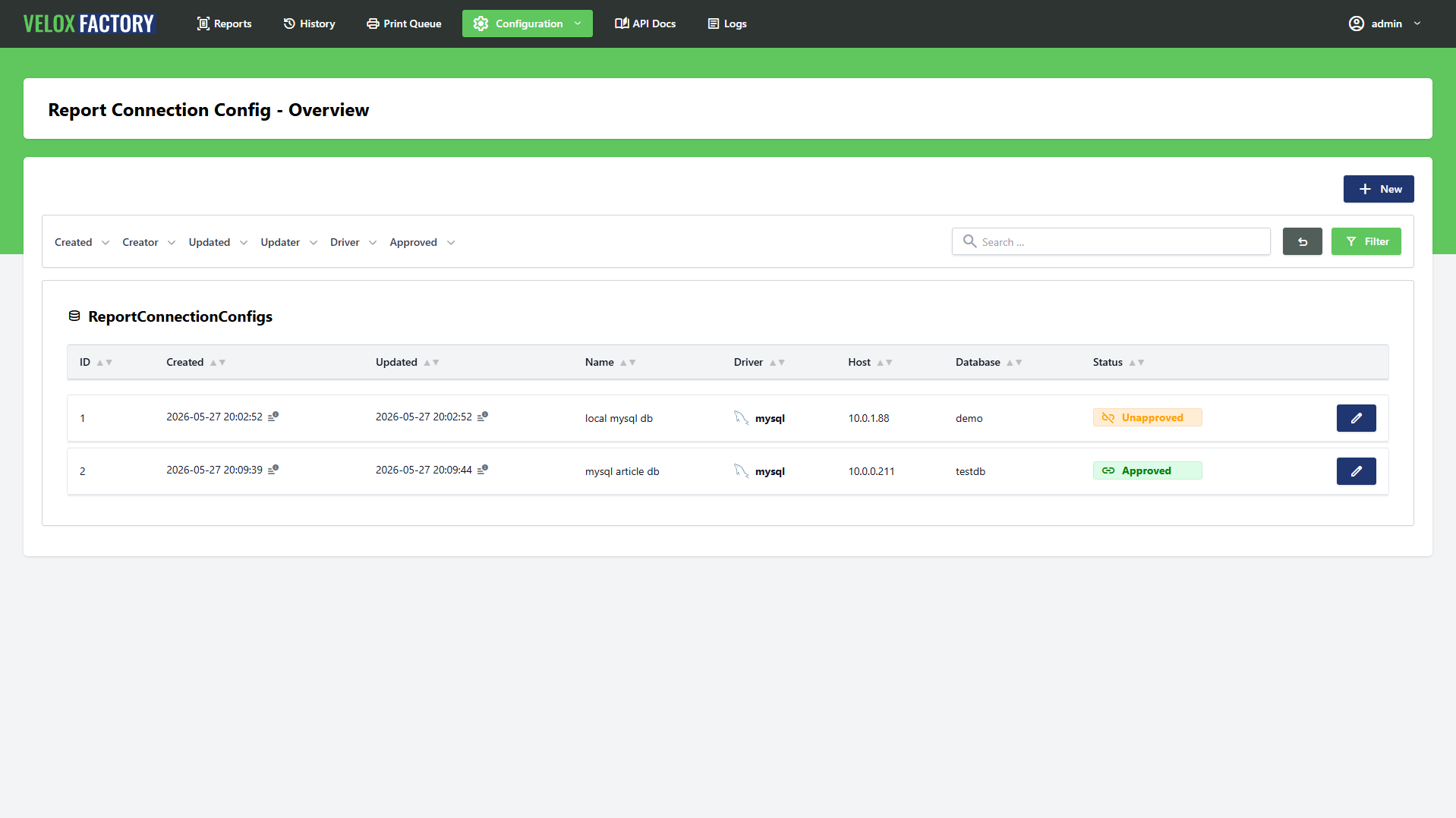](https://docs.veloxfactory.kiwi-software.dev/uploads/images/gallery/2026-05/report-connection-config-index.png)
Writing the SQL Query
The SQL query is written and stored in VeloxFactory — not in the `.jrxml`. It lives on the `ReportConfig` record and is executed against the assigned connection at render time.
The query must return columns whose names match **exactly** the field names defined in the `.jrxml`. For a report with fields `articleNumber`, `description`, and `moq`, the query must alias its columns accordingly:
```sql
SELECT
art_no AS articleNumber,
art_description AS description,
min_order_qty AS moq,
delivery_days AS deliveryTime,
supplier_name AS supplier,
barcode
FROM articles
ORDER BY art_no ASC
```
Column names are case-sensitive. `articleNumber` and `articlenumber` are not the same field.
Using Parameters as SQL Variables
Parameters passed in the render request are available as named bindings in the SQL query using the `:PARAMETER_NAME` syntax. VeloxFactory scans the query for `:name` placeholders before execution and binds only the parameters that are actually referenced — extras are silently ignored.
This makes it straightforward to filter, sort, or paginate the result set based on render-time input:
```sql
-- Filter by article number
SELECT
art_no AS articleNumber,
art_description AS description,
min_order_qty AS moq
FROM articles
WHERE art_no = :P_ARTICLE_NUMBER
```
```sql
-- Date range filter with two parameters
SELECT
order_id AS orderId,
customer_name AS customerName,
order_date AS orderDate,
total_amount AS totalAmount
FROM orders
WHERE order_date BETWEEN :P_DATE_FROM AND :P_DATE_TO
ORDER BY order_date ASC
```
```sql
-- Wildcard search
SELECT
art_no AS articleNumber,
art_description AS description
FROM articles
WHERE art_description LIKE CONCAT('%', :P_SEARCH_TERM, '%')
```
The render request for the date range example would look like this:
```json
POST /api/v1/report-config/OrderList/render
{
"outputType": "base64",
"parameters": {
"P_DATE_FROM": "2024-01-01",
"P_DATE_TO": "2024-03-31"
},
"data": [],
"createHistoryRecord": true,
"createPrintTask": false
}
```
There is a powerful pattern worth knowing: if a SQL result column has the same name as a registered parameter on the report, VeloxFactory automatically **promotes** that value from the data rows into the parameters map — before the report renders.
This means you can derive parameter values directly from the database without having to pass them in the render request. The query does the lookup; the result feeds both the detail band and the header parameters in a single call.
Consider a report that prints a picking list for a warehouse order. The header shows the order number, the customer name, and the warehouse location — all parameters. The detail band shows the individual line items — fields. Normally you would have to fetch the order header separately and pass it as parameters. With parameter promotion, a single query can deliver everything:
```sql
-- First row drives the header parameters, all rows drive the detail band.
-- P_ORDER_NUMBER, P_CUSTOMER_NAME, and P_WAREHOUSE match registered parameter
-- names and will be promoted automatically. The remaining columns stay as field data.
SELECT
o.order_number AS P_ORDER_NUMBER,
c.customer_name AS P_CUSTOMER_NAME,
w.location_code AS P_WAREHOUSE,
ol.sku AS sku,
ol.description AS description,
ol.quantity AS quantity,
ol.bin_location AS binLocation
FROM orders o
JOIN customers c ON c.id = o.customer_id
JOIN warehouses w ON w.id = o.warehouse_id
JOIN order_lines ol ON ol.order_id = o.id
WHERE o.order_number = :P_ORDER_NUMBER
ORDER BY ol.bin_location ASC
```
The render request only needs the order number:
```json
POST /api/v1/report-config/PickingList/render
{
"outputType": "base64",
"parameters": {
"P_ORDER_NUMBER": "ORD-2024-00451"
},
"data": [],
"createHistoryRecord": true,
"createPrintTask": false
}
```
VeloxFactory executes the query, detects that `P_ORDER_NUMBER`, `P_CUSTOMER_NAME`, and `P_WAREHOUSE` match registered parameter names, moves their values from the first data row into the parameters map, and renders the report with a populated header and a fully populated detail band — all from one query, one request.
ℹ️ Parameter promotion reads from every row, but only the last encountered value is kept. For consistent results, make sure promoted columns carry the same value across all rows — as in the example above, where the order header data is identical on every line item row.
---
Dynamic Array
When no `ReportConnectionConfig` is assigned, VeloxFactory expects the data to arrive in the render request itself — as a JSON array in the `data` field. Each object in the array represents one row in the detail band, with keys matching the field names defined in the `.jrxml`.
This approach is ideal when the calling application already has the data in memory, when the data comes from a source VeloxFactory cannot connect to directly, or when the data structure is too dynamic to express in a fixed SQL query.
A complete render request with inline data looks like this:
```json
POST /api/v1/report-config/A5_KanBan/render
{
"outputType": "base64",
"parameters": {
"P_ARTICLE_NUMBER": "4561287-154"
},
"data": [
{
"articleNumber": "4561287-154",
"description": "Packing Carton Size 1 - 200x150x50mm",
"moq": 250,
"deliveryTime": "3 Days",
"supplier": "Ninghao Packaging",
"barcode": "5698532145712"
}
],
"createHistoryRecord": false,
"createPrintTask": false
}
```
For reports that print one item per page, the `data` array typically contains a single object. For list or table reports, it contains one object per row.
ℹ️ Data types in the array must be compatible with the field types defined in the .jrxml. A field declared as java.lang.Integer expects a JSON number, not a string. Pass values in their native JSON type — numbers as numbers, booleans as booleans.
---
Static Reports — No Data Needed
Reports without a detail band require neither a connection config nor a data array. The entire output is driven by parameters alone. Common examples: cover pages, certificates, summary headers, QR code labels, or any document where the layout is fixed and all variable content comes from a handful of input values.
For these reports, the render request simply omits `data` entirely:
```json
POST /api/v1/report-config/CertificateOfConformity/render
{
"outputType": "url",
"parameters": {
"P_PRODUCT_NAME": "Industrial Bearing 6205-2RS",
"P_BATCH_NUMBER": "BAT-2024-0077",
"P_ISSUE_DATE": "2024-03-15",
"P_INSPECTOR_NAME": "M. Fischer"
},
"createHistoryRecord": true,
"createPrintTask": false
}
```